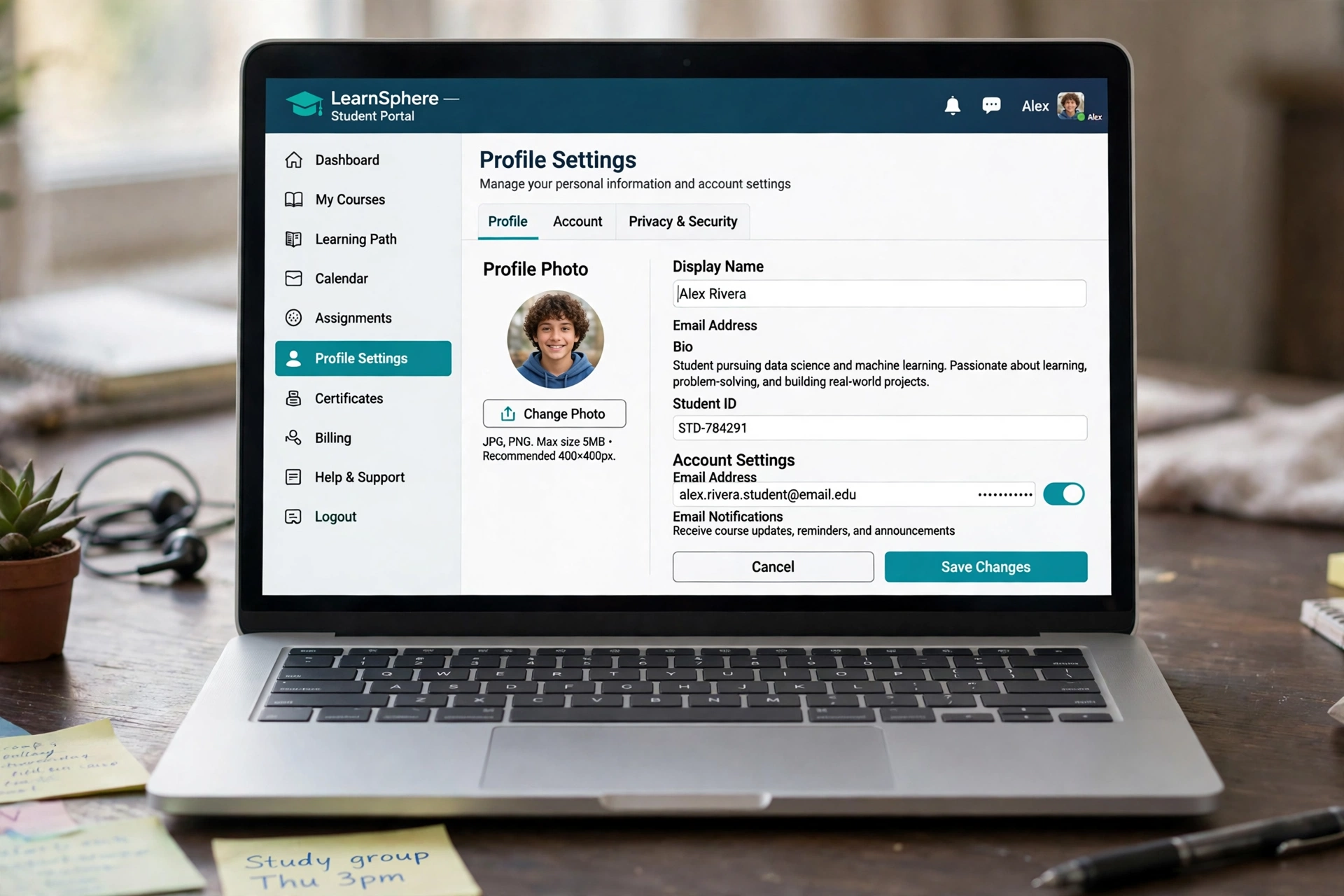
How to Update Your Schoology Profile: Picture, Display Name and Settings (EPISD Guide)
Your Schoology profile is the first thing teachers and classmates see when you participate in class discussions, submit assignments, or send messages. For EPISD (El Paso Independent School District) students and parents, keeping your profile up to date — a recognizable picture, a correct display name, and the right notification email — makes school communication smoother and helps teachers identify you quickly. This guide walks you through updating every part of your Schoology profile, both on a computer and in the mobile app.
Why Keep Your Schoology Profile Updated?
An accurate profile does more than look professional. Teachers use profile pictures to match names to faces, especially in large classes. A correct display name avoids confusion when several students share similar names. And your notification settings decide whether you hear about a new assignment or a teacher’s message in time to act on it.
Before You Start: What You Need
- Your Schoology account, logged in through the EPISD login portal (typically your EPISD student or parent credentials).
- A profile photo saved on your device (a clear headshot works best; avoid images with text or busy backgrounds).
- A couple of minutes — no special permissions are required to edit your own profile.
How to Open Your Profile Settings
- Log in to Schoology through the EPISD portal (typically at episd.schoology.com or the district’s Schoology login page).
- Click your name or profile picture in the top-right corner of the page to open the account menu.
- Select Settings from the menu. This opens your account settings page, which contains your personal information, profile photo options, and notification preferences.
- On the Schoology mobile app, tap the menu icon (three lines) in the top-left corner, then tap your name at the top of the menu to open your profile, and look for the settings option.
Step 1: Change Your Profile Picture
Your profile picture appears next to your name in courses, discussions, and messages, so choose a clear, recognizable photo.
- From the Settings page (or your profile page), click or tap your current profile picture. Schoology will offer an option to upload a new image.
- Choose Upload Picture and select the photo from your device.
- Schoology typically shows a crop box so you can frame the image as a square. Drag the handles to center your face, then confirm.
- Save your changes. The new photo should appear across your courses within a few minutes; if it doesn’t, refresh the page or log out and back in.
Profile picture tips
- Use a photo where your face is clearly visible — this helps teachers recognize you.
- Keep the image school-appropriate. Districts, including EPISD, may remove images that violate the student code of conduct.
Step 2: Update Your Display Name
Your display name is how your name appears to teachers and classmates throughout Schoology.
- On the Settings page, find the name fields (usually listed as First Name and Last Name).
- Type the corrected spelling or your preferred name format. Important: your name in Schoology may be managed by EPISD’s student information system. If the name fields are locked or grayed out, the district controls them and you’ll need to contact your school’s registrar or front office to request a change.
- Click Save Changes at the bottom of the page.
If you simply want a preferred nickname shown in a specific class, ask your teacher — some teachers allow a “preferred name” display within their course.
Step 3: Update Your Notification Email
Schoology sends email notifications for assignment due dates, teacher messages, grade updates, and course announcements. Make sure these go to an address you actually check.
- On the Settings page, locate the Account Email or Primary Email field.
- Enter the email address where you want notifications delivered.
- Save your changes. Schoology may send a verification email — open it and click the confirmation link to activate the new address.
Manage which notifications you receive
Below the email field, Schoology typically lists notification categories (grades, assignments, messages, comments). Check or uncheck the boxes to control what triggers an email.
Step 4: Review Your Account Settings
- Password: If your account uses a Schoology password (rather than signing in through the district portal), update it on the Settings page using the Change Password option. Choose a strong, unique password.
- Timezone: Confirm the timezone is set correctly (Central Time for El Paso) so due dates and times display correctly.
- Privacy: Review who can see your profile information. In a school-managed account, many of these settings are set by the district, but it’s worth checking.
Updating Your Profile in the Schoology Mobile App
- Open the Schoology app and log in with your EPISD credentials.
- Tap the menu icon and then your name to open your profile.
- Look for a settings or edit option (often a gear icon) to change your picture, email, and notification preferences.
Troubleshooting Common Profile Problems
My profile picture won’t upload
Check that the image is a common format (JPG or PNG) and not too large. Try a different browser or the desktop site if the mobile upload fails.
My name field is locked
This means EPISD manages your name through its student records. Contact your campus registrar to correct your legal name, and it will sync to Schoology, usually within a day.
I’m not getting email notifications
First verify your notification email and confirm the verification link. Then check your spam folder and make sure your school’s domain isn’t being blocked. Finally, confirm the notification checkboxes on the Settings page are actually enabled.
Final Checklist
- A clear, recognizable profile picture is uploaded.
- Your display name is spelled correctly (or you’ve requested a fix from the school).
- Your notification email is current and verified.
- Notification preferences match what you want to hear about.
- Timezone and password are up to date.
A well-maintained profile takes only a few minutes but pays off all year with clearer communication between you, your teachers, and your family.
Frequently Asked Questions
Can parents update their own Schoology profile?
Yes. Parents with a Schoology parent account can change their own profile picture, email, and notification settings the same way students do, by opening the account menu and choosing Settings.
Why can’t I change my display name in Schoology?
In EPISD, student names are typically synced from the district’s student information system, so the name fields may be locked. Ask your school’s front office to update your records, and the change will flow into Schoology.
How long does it take for a new profile picture to appear?
Usually within a few minutes. If the old picture is still showing, refresh the page, clear your browser cache, or log out and log back in.
Can I hide my profile from other students?
Profile visibility in school-managed accounts is generally controlled by the district and your teachers. You typically cannot hide your profile from classmates in your courses, but personal contact details are not shown publicly.