How to Print or Download Your Schoology Grades Report in EPISD
Seeing grades on a screen is convenient, but sometimes you need them on paper — for a parent-teacher conference, a tutoring intake form, or simply tracking progress across the semester. Schoology doesn’t offer a big “Print Report” button, but your browser’s built-in print tools can turn the grades area into a clean PDF or paper copy in under a minute. This guide shows EPISD students and parents exactly how.
Opening the Grades Area
Everything starts from the grades view, which looks slightly different for students and parents.
Student view
- Log in to Schoology and open the course you want a report for.
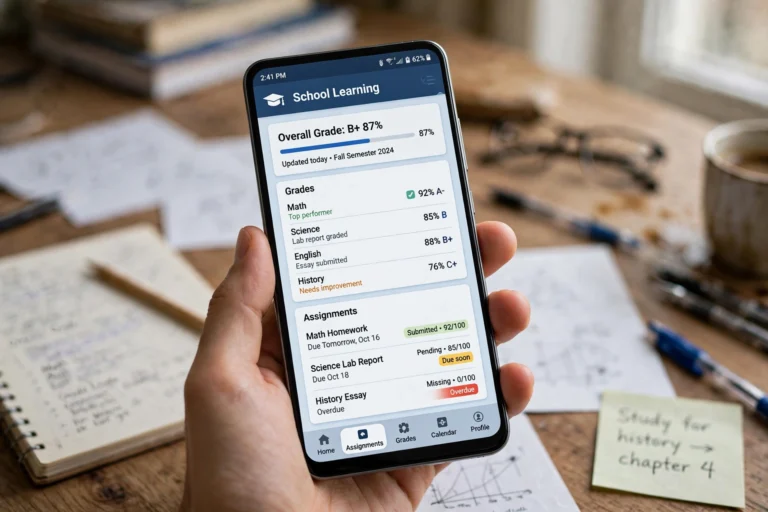
- Click Grades in the left-hand course menu. You’ll see every graded item, its points, and your running course grade.
- For an all-courses overview, click the Grades tab from your Schoology homepage instead — it lists every enrolled course with its current grade side by side.
Parent view
- Log in to your Schoology parent account.
- Select the child whose grades you want (use the dropdown at the top if you have more than one child linked).
- Click the Grades area to see that child’s grades for all courses, or open a specific course for its detailed breakdown.
Parents see the same grade data as the student: assignment names, scores, due dates, teacher comments, and the calculated course average. Nothing is hidden from the parent view.
Printing to PDF on a Computer (Recommended)
The most reliable method is printing the grades page to a PDF file. It captures the full layout, and you can save it, email it, or print it later.
- Open the grades view you want to capture (one course, or the all-courses overview).
- Make sure all graded items are visible — scroll down so the page fully loads, especially in long gradebooks with many assignments.
- Press Ctrl + P (Windows/Chromebook) or Cmd + P (Mac) to open the print dialog. You can also click the browser menu (three dots) and choose Print.
- In the Destination dropdown, select Save as PDF.
- Set the layout to Landscape — gradebook tables are wide, and landscape keeps all columns on one page.
- Check the preview. If the table is cut off, adjust the scale (try 80–90%) or enable the “Background graphics” option so colored grade cells print correctly.
- Click Save, choose a file name like “Schoology-Grades-Fall-2026.pdf”, and pick where to save it.
Printing on paper? Choose your actual printer as the destination instead of Save as PDF and follow the same steps. Landscape layout and a slightly reduced scale give the cleanest result.
Cleaning Up the Printout
Schoology’s web layout includes navigation bars and buttons you don’t need on paper. In the print dialog’s “More settings,” you can:
- Uncheck Headers and footers to remove the page URL and date from the printout.
- Adjust Margins to “Minimum” to fit more of the gradebook on each page.
- Enable Background graphics so grade colors and icons appear (useful when color-coding matters).
Saving Grades on a Phone or Tablet
The mobile route works well for quick sharing — for example, texting a grades screenshot to a parent.
On iPhone or iPad
- Open the Schoology app and navigate to the grades view.
- Take a screenshot (press Side button + Volume Up together).
- Open the screenshot, tap Full Page at the top to capture the entire scrollable grades list as a PDF, then tap Done > Save PDF to Files.
On Android
- Open the grades view in the Schoology app or in Chrome on your phone.
- In Chrome, tap the three-dot menu and choose Share > Print, then select Save as PDF as the printer.
- Alternatively, take a scrolling screenshot if your phone supports it, capturing the full list in one long image.
For formal uses — conferences, tutoring programs, scholarship paperwork — the computer print-to-PDF method above produces a much cleaner and more complete document than screenshots. Reserve mobile captures for quick informal sharing.
What to Include in Your Grades Report
A useful printed report answers the questions a parent, tutor, or counselor would ask. Make sure it shows: student and course names (confirm you’re viewing the right child), current course averages, individual assignment scores (what’s pulling the grade up or down), missing and late items (the fastest wins for grade recovery), teacher comments (click into assignments to reveal feedback worth printing), and the date — grades change constantly, so a dated snapshot keeps everyone on the same page.
Using Your Printed Report
Parent-teacher conferences
Bring a printed grades report to conferences — it lets you point at specific assignments and ask targeted questions (“What can she do to make up the October lab?”). Teachers appreciate parents who arrive with the data in hand.
Tutoring and academic support
Tutors and EPISD academic support staff work faster with the full gradebook in front of them: a printout showing exactly which units are weak helps them focus sessions where they matter most.
Tracking progress over time
Save a PDF every two to three weeks and keep them in a folder. Comparing snapshots shows whether a struggling grade is recovering — concrete proof that effort is paying off, especially before report card time.
Scholarship and program applications
Some applications ask for current grade documentation before official transcripts are available. A dated Schoology grades PDF serves as an unofficial but credible interim record.
Frequently Asked Questions
Does Schoology have an official “export grades” button?
No — Schoology doesn’t provide a one-click grade export for students and parents. The browser print-to-PDF method described here is the standard workaround, and it captures everything visible in the grades view.
Why do my printed grades look different from what’s on screen?
Usually a layout issue: switch to landscape orientation, reduce the scale to 80–90%, and enable background graphics. Also scroll the page fully before printing so lazy-loaded rows are included.
Can parents print grades for all their children at once?
No — the grades view shows one child at a time. Switch between children with the account dropdown and print each report separately.
Is a printed Schoology report the same as an official report card?
No. A Schoology printout is an unofficial snapshot of current grades. Official report cards and transcripts come from the district’s student information system and carry the school’s seal. Use the Schoology report for conferences and tracking; request official records from the campus registrar when you need them.
How often should I save a copy of the grades?
Every two to three weeks is a good rhythm during the semester, plus one right before report card grading periods close. Regular snapshots make trends visible and catch slipping grades early.
Conclusion
Printing or downloading your Schoology grades report in EPISD takes less than a minute once you know the workflow: open the grades view, press Ctrl/Cmd + P, choose Save as PDF in landscape orientation, and save. Keep those snapshots — they turn a screen of numbers into a tool for conferences, tutoring, and tracking real progress across the school year. And remember to note the date on every printout, because in Schoology, grades are always moving.