How to Use Schoology Groups in EPISD: Join, Participate and Leave
How to Use Schoology Groups in EPISD: Join, Participate and Leave
Courses are not the only way to connect on Schoology. EPISD teachers, clubs, and departments also use Schoology Groups — shared spaces for announcements, discussions, and resources that are not tied to a single class. If you have ever wondered what that Groups tab is for, this guide explains what groups are, how to join one with an access code, how to participate, and how to leave a group you no longer need.
What Are Schoology Groups?
A Schoology group is a collaborative space that works like a small community inside Schoology. Unlike a course — which has enrolled students, graded assignments, and a teacher-run gradebook — a group is more informal. Groups are commonly used for:
- School clubs and extracurriculars (robotics, debate, band, athletics)
- Grade-level or campus announcements
- Parent organizations and volunteer teams
- Study groups and tutoring circles
- Teacher professional learning communities
Groups have their own updates feed, discussion boards, media albums, and a resources section where files and links can be shared. Parents can join groups too, when a campus or teacher makes one available to them.
Groups vs. Courses: What Is the Difference?
It helps to keep the two straight:
- Courses are classes. They have rosters, assignments, due dates, and grades. You are enrolled by the school and cannot join or leave on your own.
- Groups are communities. They have members, discussions, and shared resources, but no grades. You usually join with an access code and can often leave whenever you want.
If you are looking for an assignment or a grade, you want the Courses tab. If you are looking for club updates or a discussion thread, check Groups.
How to Join a Schoology Group With an Access Code
Step 1: Get the access code
Group access codes are shared by the group’s administrator — usually a teacher, coach, or club sponsor. Check your email, a class announcement, or a campus flyer for the code. Each code is specific to one group, so make sure you have the right one.
Step 2: Go to the Groups area
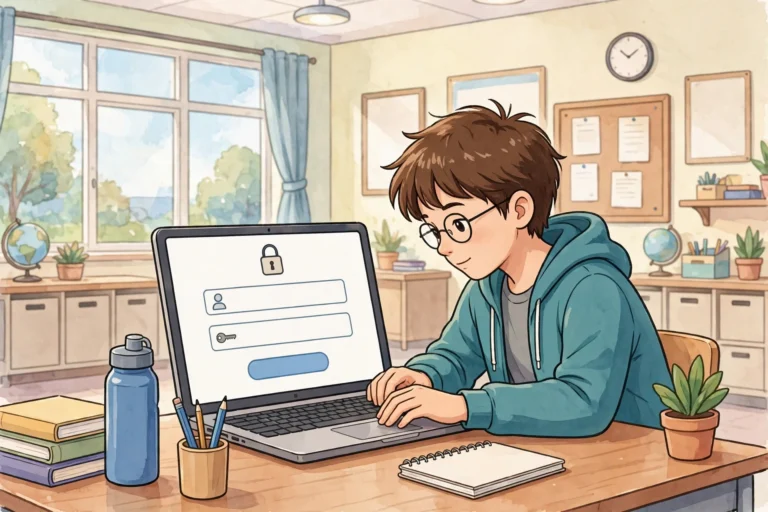
Log in to Schoology via the EPISD login page. Click Groups in the top navigation bar, then choose My Groups. Look for the Join a Group button (on the app, tap Groups and look for the join option in the menu).
Step 3: Enter the code
Type or paste the access code exactly as it was given to you — codes are case-sensitive. Click Join, and the group will appear in your My Groups list.
What if the code does not work?
- Double-check for extra spaces when copying and pasting.
- Confirm the code is for the current school year — some groups create new codes each year.
- Ask the group administrator to verify the code is still active and that you have the right one.
How to Participate in a Group
Read and post updates
Open the group and you will land on its home feed, where administrators and members post updates. You can like updates and add comments, the same way you do in a course. This is where most club announcements and reminders appear.
Join discussions
Click the Discussions tab to see threaded conversations. Read the prompt, then reply to share your thoughts — or start your own discussion if the group allows it. Keep replies on topic and respectful, just as you would in class.
Use shared resources
The Resources section holds files the group has shared: schedules, forms, study guides, photos, and links. You can open and download anything here. If you have permission, you can also add files of your own.
Check the group calendar
Groups can have their own calendar events — meeting times, game schedules, volunteer shifts. These can show up on your main Schoology calendar too, so you never miss a club meeting.
How to Leave a Schoology Group
When a season ends or you no longer need a group, leaving is simple:
- Go to Groups and open the group you want to leave.
- Click the Members area or the group options menu.
- Choose Leave Group and confirm.
The group disappears from your list immediately. Leaving a group does not affect your courses or grades — it only removes you from that group’s discussions and resources. If you leave by mistake, you can rejoin with the access code, as long as it is still active.
Note: some groups are managed by EPISD staff and do not offer a leave option to students. If you cannot leave a group, contact the group administrator or your campus office.
Group Notifications and Etiquette
Manage notifications
Active groups can generate a lot of alerts. Open the group’s settings to adjust notifications — you can mute a noisy group while staying a member, or set it to email you only for important updates.
Follow group rules
Each group may have its own guidelines posted by the administrator. The basics apply everywhere: keep posts relevant, be respectful in discussions, and never share another member’s personal information.
Frequently Asked Questions
Can parents join Schoology groups?
Yes, if the group is set up to allow parent members. Ask the teacher or group administrator for a parent access code or invitation.
Why can’t I see the join button?
Make sure you are logged in with the right account type. Some join options only appear on the full website rather than the mobile app — try a desktop browser if the app does not show it.
Do groups affect my grades?
No. Groups have no gradebook and no graded assignments. Anything that counts toward your grade lives in your courses.
How many groups can I join?
There is no strict limit for most users, but keep your list manageable — join the groups you will actually participate in so your feed stays useful.
I left a group but still get its emails. What should I do?
Check the group’s notification settings before you leave, or look for an unsubscribe link in the emails. If they continue, contact the group administrator to remove your address from any mailing lists tied to the group.