How to Use Schoology on an Android Phone: EPISD Guide
Many EPISD (El Paso Independent School District) students do most of their schoolwork on a phone, and the Schoology Android app puts classes, grades, assignments, and teacher messages in your pocket. This guide covers everything: installing the app, logging in with your EPISD credentials, and doing the everyday tasks — checking grades, turning in assignments, and messaging teachers — right from your Android device.
Which Schoology App Do You Need?
There are two Schoology apps in the Google Play Store:
- Schoology (the student/teacher app) — for students doing coursework.
- Schoology Parent (or the parent app) — for parents monitoring grades, attendance, and activity.
If you are a student, install the main Schoology app. If you are a parent with a parent account, install the parent app — it shows all of your children’s courses in one dashboard.
Step 1: Install the App
- Open the Google Play Store on your Android phone.
- Search for “Schoology” (published by Schoology, Inc.) and install it. The app is free.
- Check that your phone runs a reasonably recent Android version — very old versions may not support the latest app. If installation fails, free up storage space and try again.
Step 2: Log In With Your EPISD Credentials
- Open the Schoology app and tap Log In.
- The app will ask for your school or district. Search for EPISD or El Paso Independent School District. You may need to enter the district’s Schoology domain (often something like episd.schoology.com) — your school’s technology page or your teacher can confirm the exact address.
- Enter your EPISD username and password — the same credentials you use on a computer. Complete any single sign-on flow the district uses rather than creating a new account.
- Once logged in, the app typically keeps you signed in.
Navigating the App: The Basics
The app’s home screen is your command center. Here’s what the main areas do:
- Menu (three lines, top-left): opens navigation to your courses, groups, calendar, and settings.
- Courses: lists every class you’re enrolled in. Tap a course to see its materials, assignments, and grades.
- Upcoming/Calendar: shows assignment due dates and events across all courses, sorted by date.
- Notifications (bell icon): alerts you to new grades, teacher comments, and messages.
Key Task 1: Checking Your Grades
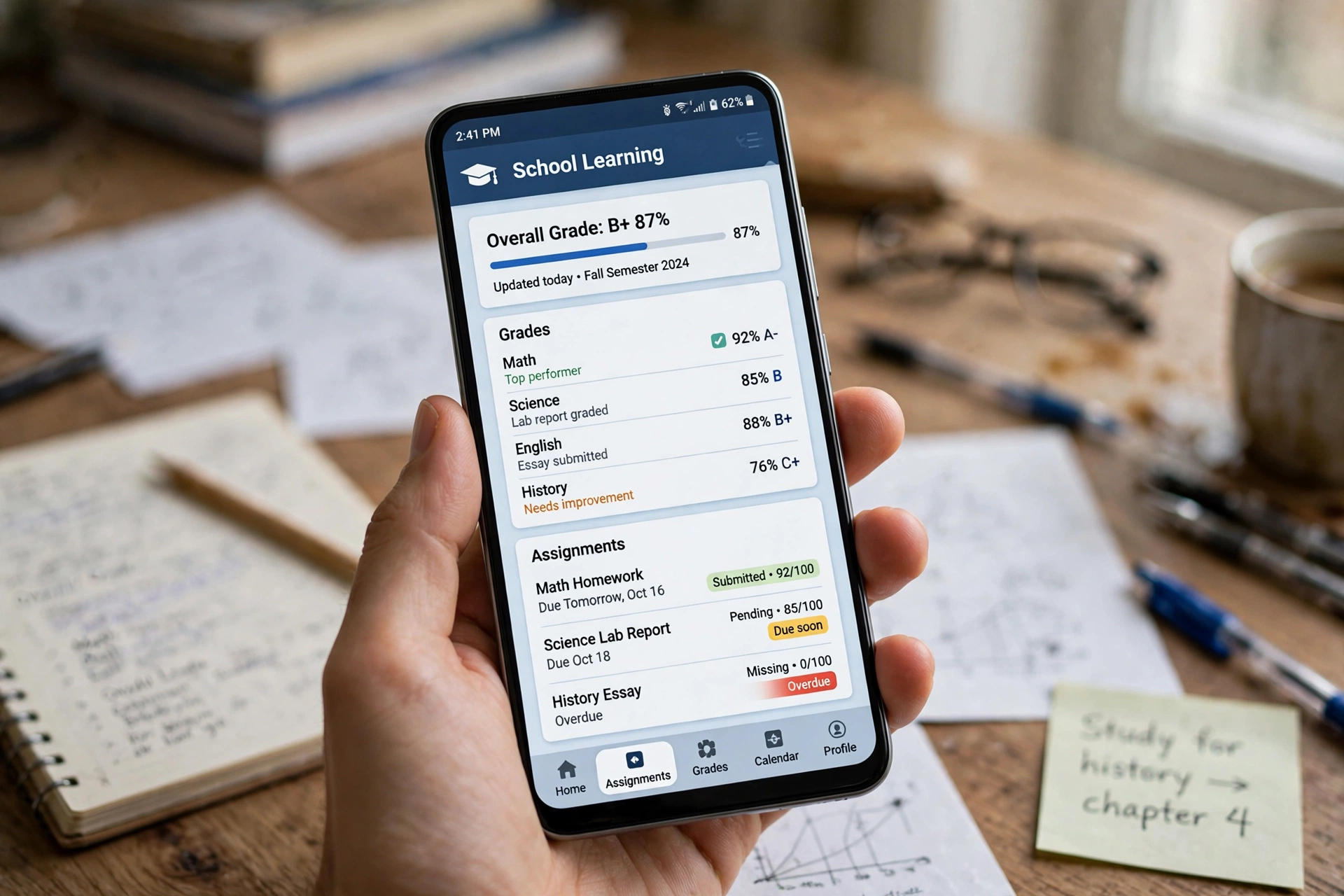
- Tap the menu icon and select Grades (or open a course and tap its Grades section).
- You’ll see your current grade per course and can tap into a course to view individual assignment scores.
- Tap any assignment to see the score, the teacher’s comments, and any attached feedback files.
Grades in the app mirror the web version, so what your teacher posts on a computer appears on your phone too.
Key Task 2: Viewing and Submitting Assignments
- Go to Upcoming or open a course and tap Assignments to see what’s due.
- Tap an assignment to read the instructions, due date, and any attached files or links.
- To submit, tap the submit or upload button. You can typically attach a file from your phone (a photo of handwritten work, a PDF, or a document), type a text response, or add a link — whatever the teacher’s instructions allow.
Mobile submission tips
- Take photos of handwritten work in good light, straight-on, before uploading — blurry photos are a common reason for lost points.
- If an assignment requires a document, write it in Google Docs or another app first, then attach the file.
- Submit over Wi-Fi when possible. Large files on a weak cellular connection can fail silently — always verify the submitted status.
Key Task 3: Messaging Teachers and Classmates
- Tap the Messages icon (usually an envelope) in the navigation.
- Start a new message, choose the recipient (your teacher or a classmate), and write your message. Include your full name and class period if you have multiple classes with the same teacher.
Key Task 4: Taking Part in Discussions
- Open the course, find the Discussions section, and tap the assigned discussion topic.
- Read the prompt and a few classmates’ replies first.
- Tap reply or add a comment, write your response, and post it before the deadline.
Android-Specific Tips
- Enable notifications: When the app asks for notification permission, allow it. Go to Android Settings > Apps > Schoology > Notifications and make sure due-date and message alerts are on — otherwise you’ll miss reminders.
- Save battery: The app is light, but if you enable sync for offline viewing of materials, downloads can use battery and data. Sync over Wi-Fi only.
- Keep the app updated: Update Schoology through the Play Store regularly. Old versions can lose compatibility with new features or the district’s login system.
- Use a file manager or Google Drive: Saving school files in one folder (or in Google Drive) makes finding them for submissions faster.
Troubleshooting Common Android Problems
The app won’t accept my login
Double-check that you selected the EPISD district/school login and not the generic Schoology login. If your password works on a computer but not in the app, update the app, then try again. Persistent failures usually mean a password reset is needed — use the district’s password reset process.
I’m logged in but my courses are missing
Pull down to refresh the course list. If courses still don’t appear, log out and log back in. If that fails, confirm with your teacher that you’re enrolled — enrollment changes can take time to sync.
File upload fails
Check your internet connection first. Then confirm the file type is accepted (some assignments only allow certain formats) and the file isn’t oversized. Try uploading over Wi-Fi.
Notifications aren’t arriving
Open Android Settings > Apps > Schoology > Notifications and confirm they’re enabled. Also check battery optimization settings — aggressive battery savers can delay or block app notifications.
When to Use a Computer Instead
The Android app handles daily tasks well, but long essay submissions and complex quizzes are easier on a full browser — log in through the EPISD Schoology website on a Chromebook or computer for those.
Frequently Asked Questions
Is the Schoology app free?
Yes. The Schoology and Schoology Parent apps are free to download and use; your EPISD account gives you full access at no cost.
Can parents use the same app as students?
Parents should use the Schoology Parent app (or log in as a parent on the website) rather than the student app. The parent view is designed for monitoring — grades, attendance, and activity across all your children.
Why does the app ask me to pick my school?
Schoology hosts thousands of schools. Selecting EPISD routes your login through the district’s authentication, which is required for your account to work — the generic login won’t recognize district credentials.
Does the app work offline?
Partially. Some downloaded materials can be viewed offline, but submitting assignments, taking quizzes, and messaging require an internet connection.