How to Join a Schoology Course with an Access Code (EPISD Guide)
If you are new to Schoology in the El Paso Independent School District, one of the first things you will need to do is join your classes. Many EPISD teachers give students a course access code — a short string of letters and numbers that adds you to the right class in one step.
Joining a course takes less than a minute once you have the code, whether you log in on a computer or through the Schoology mobile app. In this guide, we explain what an access code is, where to find yours, exactly how to use it on the website and in the app, what to do when a code does not work, and how a course access code is different from a parent access code. If you are brand new to the platform, start with our overview of what Schoology EPISD is first.
What Is a Course Access Code?
A course access code is a unique code that a teacher creates for a specific Schoology course. Think of it like an invitation: when you enter the code, Schoology enrolls you in that teacher’s class so you can see assignments, learning materials, grades, and announcements.
Each code works for one course only. Your math class, English class, and science class will each have their own code. A code is not your login password, and it is not the same thing as a parent access code, which parents use to create their own accounts (more on that below).
Teachers sometimes reset or change their codes during the school year, so a code that worked in August might not work in January. If a code stops working, the fix is almost always to ask your teacher for the current one.
Where Do You Get Your Access Code?
Your teacher is the only reliable source for a course access code. Teachers share codes in different ways: written on the board on the first day of class, printed on a handout, sent by email, or posted in the district’s student portal.
A few rules of thumb:
- Never guess a code or borrow one from a friend in a different class — you will end up in the wrong course.
- Do not use a code from a previous school year; old codes usually no longer work.
- Keep your code private. It is tied to your teacher’s class, so there is no reason to post it on social media or share it with students who are not in the class.
- If you lost your code, ask your teacher directly — that is the fastest fix.
How to Join a Course on the Schoology Website
Follow these steps on a computer or Chromebook:
- Log in to Schoology through the EPISD login page.
- Click Courses in the top menu bar.
- Select Join a Course. On some versions of Schoology, you will instead click the + icon or open the Courses dropdown menu and choose Join Course.
- Type or paste the access code exactly as your teacher gave it.
- Click Join.
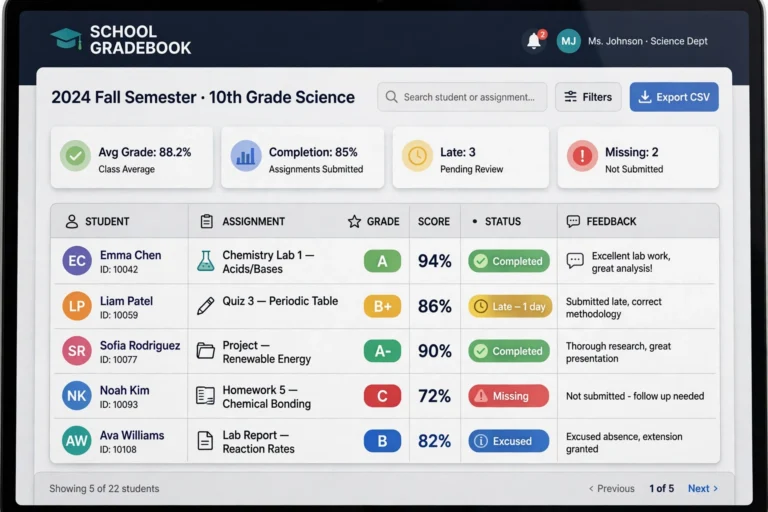
The course appears in your Courses list right away. Click it to open the class page, where you will find the teacher’s materials, upcoming assignments, and announcements. Once you are enrolled, you can also check your grades in Schoology for that class.
How to Join a Course in the Schoology Mobile App
Joining from your phone or tablet works almost the same way:
- Open the Schoology app and log in to your student account.
- Tap the Courses icon, or open the main menu (the three-line icon) and go to Courses.
- Tap Join Course. On some versions this option sits under a + button.
- Enter the access code and tap Join.
The new course should show up in your course list within a few seconds. If it does not appear, pull down on the list to refresh it, then check again.
What to Do If Your Access Code Doesn’t Work
A code that will not go through is frustrating, but the cause is usually simple. Work through this checklist:
- Check every character. Codes mix letters and numbers that look alike (0 and O, 1 and lowercase l). Re-type the code by hand instead of trusting autocorrect or autofill.
- Make sure it is a course code, not a parent code. Course access codes and parent access codes are entered in different places — a parent code will never work in the “Join a Course” box.
- Confirm you are logged in as a student. If you are signed in to a parent account, you cannot join courses with a course code.
- The code may have been reset. Teachers sometimes generate fresh codes mid-year. Ask your teacher for the current one.
- Check whether you already joined. If the course is already sitting in your Courses list, you do not need the code again.
- Still stuck? Ask your teacher or your school’s front office — they can confirm the right code or enroll you in the course directly.
Course Access Code vs. Parent Access Code
These two codes do different jobs, and mixing them up is one of the most common login headaches:
- Course access code — used by students to join a class.
- Parent access code — used by parents and guardians to create a parent account and follow their child’s courses, grades, and assignments.
The codes are not interchangeable. If you are a parent trying to keep up with your child’s schoolwork, read our complete guide: EPISD Schoology Parent Access Code: Complete Guide for Parents.
Frequently Asked Questions
Can I use one access code for all my classes?
No. Each course has its own unique code, so you will repeat the join process once per class at the start of the term.
Do access codes expire?
They do not have a fixed expiration date, but teachers can reset or replace them at any time. If a code that used to work suddenly fails, ask your teacher for the new one.
I joined the wrong course. What now?
Open the course, look for the Course Options menu (usually a gear icon), and choose the option to leave or unenroll from the course. Then join the correct course with the right code. If you cannot find the leave option, ask your teacher to remove you.
Do I need a new code every school year?
Usually, yes. New classes come with new codes, so expect a fresh set each fall — and sometimes each semester.
Can my parent use my course access code?
No. Parents need the parent access code, which sets up a separate parent account linked to the student. See our parent access code guide for the full steps.