Schoology EPISD for New Students: First Week Setup Checklist
Starting at a new school is busy enough without wrestling with a new learning platform. If you are a new EPISD student, Schoology is where your courses, assignments, grades, and teacher messages will live all year — so getting it set up properly in your first week pays off every single day after that. Work through this checklist in order, and by Friday you will know exactly where everything is.
Step 1: Log In for the First Time
Your first job is simply to get in. Go to the EPISD Schoology login page using the link your school provided. Students typically log in with their student ID number as the username — digits only, no spaces — plus the password issued by the school. Parents log in separately with the email address they registered.
On your first login, Schoology may ask you to accept terms or change a default password. Do this on a laptop or desktop browser rather than a phone if you can, since the setup screens are easier to read. If your login fails, retype both fields slowly and check Caps Lock first; if it still fails, your campus front office can confirm your username and reset your password.
Save your login safely
Once you are in, store your username and new password in a safe place — a password manager on a family device is ideal. Do not share your login with classmates, and do not write it on a loose piece of paper that can be lost.
Step 2: Set Up Your Profile
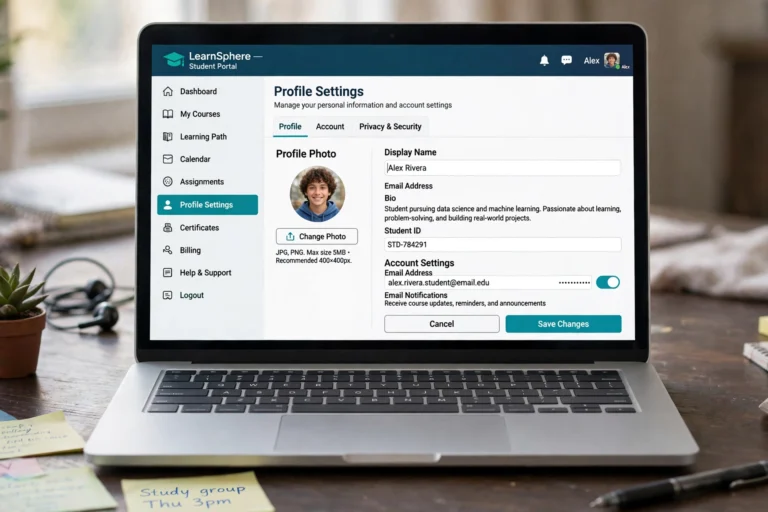
Click on your name or profile icon to open your account settings. Check that your name is spelled correctly and that your profile picture, if you add one, is appropriate for school. A clear, school-appropriate photo helps teachers recognize you, but it is optional — you can skip it and still use Schoology fully.
Step 3: Find and Join Your Courses
Your courses should appear on your dashboard automatically once your school enrollment is processed. Open each course and look around: the materials section holds readings and resources, the updates feed shows announcements, and the gradebook will fill in as work is graded. If a course is missing, do not panic — enrollments sometimes take a day or two to sync at the start of term.
If you were given a course access code by a teacher, you can join that course manually from the Courses menu. Enter the code exactly as provided, including any numbers or letters, and the course will appear on your dashboard. If a code fails, double-check it with your teacher rather than guessing repeatedly.
Step 4: Learn the Calendar
The Schoology calendar is your single best tool for staying on top of schoolwork. It pulls due dates from all your courses into one view, so you can see this week’s deadlines without opening each course separately. Open the calendar during your first week and scan the next two weeks for assignments, quizzes, and events.
Make a habit of checking the calendar every school morning and every Sunday evening. Write down big deadlines somewhere you will see them too — a planner, a wall calendar, or a phone reminder — until checking Schoology becomes automatic. Students who check the calendar daily almost never miss a deadline by surprise.
Step 5: Turn On Notifications
Notifications are how Schoology tells you about new assignments, teacher announcements, messages, and grades. In your account settings, choose which notifications you want and how you want to receive them — in Schoology itself, by email, or both. New students should start with notifications on for assignments, announcements, and messages, and can trim them later if they become too frequent.
Step 6: Complete Your First Assignment
Your first assignment is a practice run for the whole year, so treat it as a learning exercise, not just homework. Open the assignment, read the instructions fully before starting, and note the due date and the allowed file formats. Complete the work, then submit it through Schoology following the upload steps — and wait for the confirmation that your submission went through.
After submitting, check two things: that the assignment shows as submitted (not still “in progress”), and that any attached file opens correctly. If something looks wrong, you can often resubmit before the deadline. Getting this right on a low-stakes first assignment means you will not be learning the submission process under pressure on a major project.
First-week assignment checklist
- Read the instructions completely before starting.
- Note the due date and add it to your calendar.
- Save your work with a clear file name.
- Upload the correct file and confirm the submission.
- Check back later for your grade and any teacher feedback.
Step 7: Learn How to Message Teachers
Questions will come up, and Schoology messaging is the right place for most of them. Find the messaging area, locate your teacher’s name, and practice writing a clear, polite message: state the course, the assignment, and your specific question. Teachers expect new students to need help at first — asking early is always better than staying stuck.
Your First Week at a Glance
- Day 1: Log in, change your password, and save your login safely.
- Day 2: Set up your profile and notification preferences.
- Day 3: Open every course and explore its materials and announcements.
- Day 4: Study the calendar and note the next two weeks of deadlines.
- Day 5: Submit your first assignment and confirm it went through.
- Weekend: Review your dashboard once more and message any teacher about anything still unclear.
Frequently Asked Questions
What is my Schoology username as a new EPISD student?
Students typically log in with their student ID number as the username, digits only. Parents use the email address they registered with. If you are unsure, ask your campus front office.
What if one of my courses is missing from Schoology?
Wait a day or two at the start of term, since enrollments can take time to sync. If it is still missing, check with your teacher or the front office, and confirm whether you need a course access code.
How do I know when assignments are due?
Check the Schoology calendar, which combines due dates from all your courses, and open individual assignments for their exact deadlines. Make checking the calendar a daily habit.
Should I install the Schoology app too?
The app is a useful companion for checking messages and deadlines on the go, but the full web version on a laptop or desktop is best for writing and submitting longer assignments. Many students use both.
Who do I contact if I can’t log in at all?
Start with your campus front office or registrar, who can confirm your username and reset your password. Your teacher can also point you to the right campus support contact.
That is the whole first week: log in, set up your profile, find your courses, learn the calendar, turn on notifications, submit your first assignment, and learn how to reach your teachers. None of these steps is difficult on its own, but together they turn Schoology from a confusing new system into the reliable home base for your school year.