How to Contact EPISD Technology Support for Schoology Help
When Schoology won’t load, your password stops working, or an assignment refuses to submit, knowing exactly where to get help saves you from lost class time and missed deadlines. EPISD provides several layers of technology support for students and parents — from self-help resources you can check in two minutes to campus technicians and the district help desk. This guide maps out every option and shows you how to get your problem solved fast.
Start with Self-Help: Fix It in Minutes
Many Schoology problems are quick fixes. Before contacting support, run through these checks — they resolve most login and access issues reported by EPISD families:
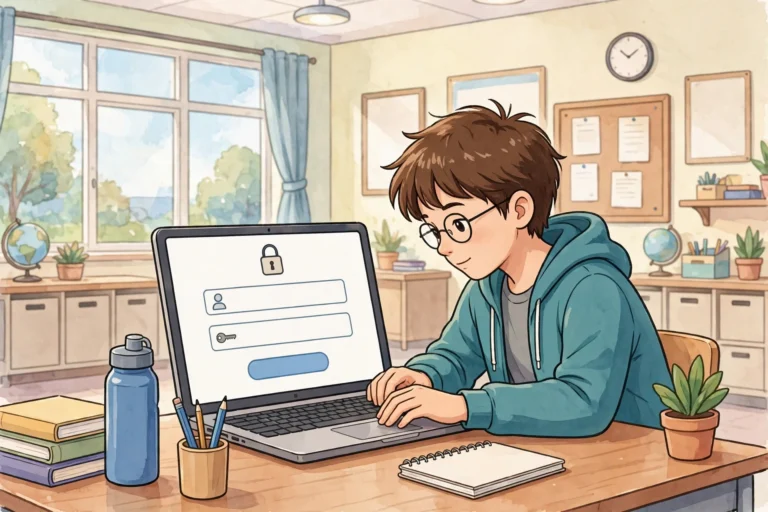
- Use the correct login page: EPISD students log in through the district portal or the Schoology app — using the wrong portal is the most common cause of “login not working” complaints.
- Re-type your credentials: passwords are case-sensitive; watch for transposed letters or a trailing space.
- Clear your browser cache or try another browser: corrupted cached data causes blank pages and frozen logins.
- Restart and update the Schoology app: fully close the app on your phone or tablet, reopen it, and install any pending updates.
- Test your internet connection: uploads, quizzes, and video need a stable connection — school Wi-Fi is the most reliable option.
If none of these work, move on to the human support options below.
Your School Campus: The First Line of Human Help
Every EPISD campus has staff who handle day-to-day technology issues: instructional technology specialists, librarians, and front-office personnel. They are your fastest option during the school day because they are in the same building and know the campus setup.
Your campus can help with:
- Password resets for student accounts
- Chromebook problems: won’t turn on, won’t connect to Wi-Fi, cracked screens, missing chargers
- Class schedule or course enrollment errors (wrong classes showing in Schoology)
- Parent portal access codes and linking multiple children to one parent account
Call the school’s front office or send a message to your child’s teacher through Schoology to be connected with campus tech support. Most campuses can resolve account and device issues the same day you report them.
EPISD Technology Help Desk: District-Level Support
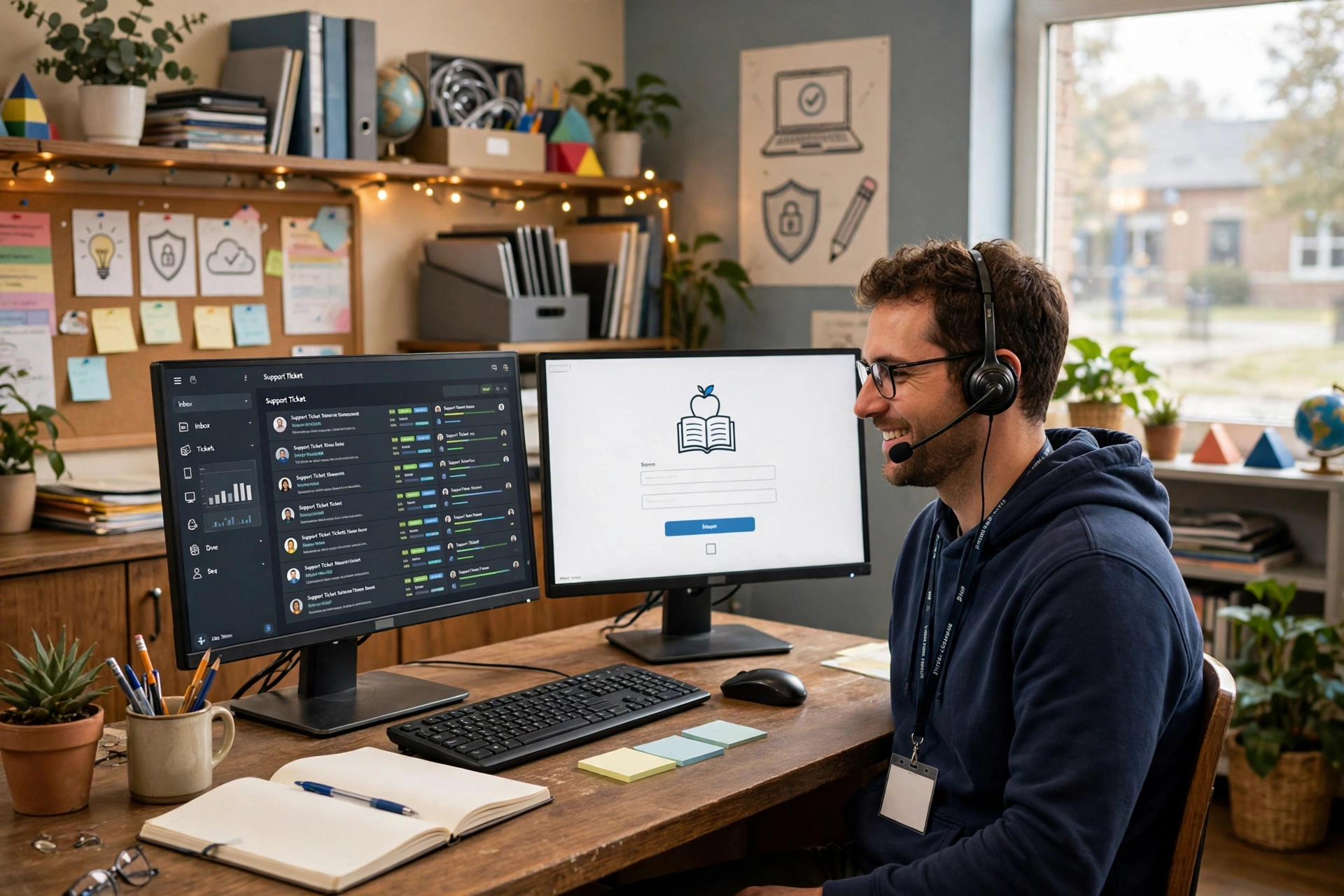
For problems your campus can’t resolve — or when school is not in session — the EPISD Information Technology Services department provides district-wide help. The help desk supports all EPISD students, parents, and staff with account, network, and application issues.
Here is how to reach them:
- Phone: Call the EPISD main line and ask for Technology Services / the IT Help Desk. Phone support is available during district business hours on school days.
- Email / ticket system: Many EPISD campuses and the district use an online ticketing system where you describe your issue and get a ticket number. Tickets are typically answered within one business day.
- In-person: Some campuses offer walk-in tech support hours — ask your school’s front office for the schedule.
The help desk handles account lockouts, district-wide outages, email and portal access issues, and escalations from campus staff. If Schoology itself is down for everyone (not just you), the help desk is the office that tracks the outage and posts updates.
What Information to Have Ready
Support staff can help you far faster when you arrive prepared. Before you call or submit a ticket, gather:
- Student ID number — the single most important identifier. Find it on report cards or schedules, or ask the campus office.
- Full name, campus, and grade level.
- The exact error message — written down word for word.
- Screenshots of the error screen (Chromebook: Ctrl + Show Windows; phone: power + volume-down).
- When it started and what you already tried (clearing cache, restarting, another device).
- Your contact info for follow-up updates.
For parents calling about a child, have the child’s student ID ready — staff generally can’t look up accounts by parent name alone.
Typical Response Times and What to Expect
Knowing the timeline helps you plan — especially when a deadline is approaching:
- Campus support (school days): most password and device issues are resolved the same day, often within minutes during class hours.
- District help desk tickets: expect an initial response within one business day; complex issues may take two to three.
- After hours and weekends: support is limited. If an assignment is due and Schoology is broken, message your teacher through the app or email so there’s a record you tried before the deadline.
- District-wide outages: rare, but check with classmates or the campus office to confirm it’s not just your device, then wait for the district’s update rather than submitting duplicate tickets.
Urgent deadline tip: if a technical problem blocks a same-day submission, notify the teacher immediately and save your completed work. Teachers are far more flexible when they see you attempted the work and reported the problem before the deadline passed.
Schoology’s Own Help Resources
Beyond EPISD, Schoology maintains official support resources that cover the platform itself:
- Schoology Help Center — searchable articles and video tutorials for students, parents, and teachers, covering every feature from submitting assignments to adjusting notification settings.
- Status page — check whether Schoology is experiencing a known outage before troubleshooting your own device.
- In-app support — the mobile apps include help links and guided tours of key features.
These resources are best for “how do I use this feature” questions. For account access, passwords, and anything tied to your EPISD enrollment, your campus or the district help desk is the right contact — Schoology’s general support cannot reset district-managed accounts.
Frequently Asked Questions
Who do I call if my child’s Schoology password doesn’t work?
Start with your child’s campus — the front office or campus tech staff can reset student passwords quickly, usually the same day. The district help desk is the backup option.
Can parents get tech support directly, or does the student have to ask?
Parents can absolutely contact support. For parent portal issues (access codes, linking children), contact the campus directly. For student account issues, have the child’s student ID ready.
What if Schoology is down during a test or quiz?
Don’t keep refreshing — tell your teacher immediately so it’s documented, and take a screenshot of any error. If it’s a district-wide outage, EPISD IT will post updates; your teacher will arrange a makeup or extension.
How do I report a broken Chromebook?
Report it to your campus as soon as possible — most EPISD campuses have a device repair or swap process. Don’t attempt repairs yourself, as that can void the district’s coverage.
Is there support in Spanish?
EPISD serves many Spanish-speaking families, and campus offices can assist in Spanish. When submitting a help ticket, you can note your preferred language so the right staff member responds.
Conclusion
EPISD families have three strong support layers for Schoology problems: quick self-help fixes for the common issues, campus tech staff for same-day account and device help, and the district Technology Services help desk for everything else. Keep your student ID handy, screenshot your error messages, and report problems early — especially before a deadline. The faster support staff can see what’s wrong, the faster you’re back to learning.