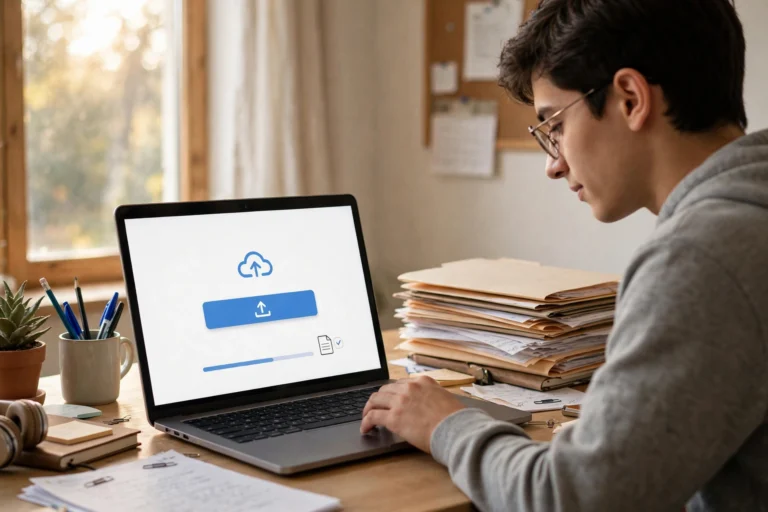
How to Use Schoology on a Windows Laptop or Desktop: EPISD Guide
Schoology works well on a Windows laptop or desktop, and for many EPISD students it is the easiest way to do schoolwork: a bigger screen for reading, a real keyboard for writing, and enough space to keep a document and an assignment open side by side. You do not need to install anything special to get started. This guide walks you through logging in from a browser, choosing the best setup, managing notifications, uploading files, and fixing the most common Windows problems.
Logging In From a Browser
On a Windows computer, Schoology is used through a web browser, not a downloaded program. Open your browser and go to the EPISD Schoology login page — the link provided by your school or district. Enter your student username, which in EPISD is typically your student ID number, and your password, then click Log In.
For the smoothest first login, use a desktop browser rather than a phone, accept any terms Schoology shows, and change a default password if you are asked to. Once you are in, you will see your courses on the dashboard, with upcoming assignments, recent activity, and announcements. Bookmark the login page so you can reach it in one click tomorrow morning.
Staying signed in safely
On a personal or family computer, your browser can remember your login. On a shared or school computer, always sign out when you finish.
Best Browsers for Schoology on Windows
Schoology runs in any modern browser, but some combinations are smoother than others. Google Chrome and Microsoft Edge are the most reliable choices on Windows, and both are kept up to date automatically. Mozilla Firefox also works well. Older browsers, or very old versions of any browser, can cause pages to load incorrectly or buttons to stop responding.
- Google Chrome: the most widely tested option, with strong support for documents, media, and uploads.
- Microsoft Edge: built into Windows, fast, and fully compatible with Schoology.
- Mozilla Firefox: a solid alternative if you already use it for everything else.
Whichever browser you choose, keep it updated. Updates fix security issues and the small display glitches that make assignments hard to submit. If a page looks broken, the first fix is almost always to update the browser and reload the page.
Setting Up Notifications on Windows
Notifications help you catch new assignments, teacher messages, and grade updates without checking Schoology every hour. In Schoology, open your account settings and choose which notifications you want by email or in the platform — for example, new assignments, course announcements, and messages from teachers.
Your browser also needs permission to show notifications. When Schoology or your browser asks to allow notifications, accept it on your own computer if you want alerts. On Windows, you can fine-tune this in Settings, then System, then Notifications, where you can allow your browser while silencing other apps during study time. If notifications become distracting, turn off the less important ones rather than all of them — missing an assignment deadline is worse than one extra alert.
Uploading Files From a Windows Computer
Most Schoology assignments ask you to upload a file, and Windows makes this straightforward. Click the assignment, choose the upload or submission option, and pick your file from Documents, Downloads, or wherever you saved it. Common accepted formats include Word documents, PDFs, images, and presentations — check the assignment instructions if you are unsure.
Save your file before you upload it, and give it a clear name, such as “Science-Report-YourName.docx”. After uploading, wait for the confirmation message and check that the file name appears on the submission page before you close the tab.
Uploading from OneDrive or Google Drive
If your work is saved in OneDrive or Google Drive, you can usually download it to your computer first and then upload it to Schoology. Downloading first avoids permission problems where a teacher cannot open a shared cloud link. Keep a local copy of every submitted assignment until the grade comes back, just in case.
Working Efficiently on a Larger Screen
A Windows desktop rewards a little organization. Keep your Schoology tab pinned in your browser so it is always one click away, and use the calendar view to see every due date across your courses in one place. For writing assignments, open your document in one window and the assignment instructions in another — on a laptop, you can snap windows side by side, and on a desktop monitor you have room for both comfortably.
Common Windows Issues and How to Fix Them
Pages won’t load or look broken
Reload the page first. If that fails, clear your browser cache and cookies for Schoology, or try a private or incognito window, which rules out a bad extension or saved data. If the page loads in another browser, the problem is with your first browser’s settings, not with Schoology itself.
Can’t upload a file
Check the file size and format against the assignment instructions, and make sure the file is closed in Word or another program before uploading — an open file can sometimes fail to attach. Try a different browser if the upload button does nothing, and rename files that contain unusual symbols.
Login keeps failing
Retype your username slowly — EPISD student usernames are typically the student ID number, digits only, with no spaces. Check Caps Lock, since passwords are case-sensitive, and try the password reset option if you are sure the username is right. If it still fails, contact your campus front office, which can confirm your account details.
Notifications aren’t arriving
Check both places: Schoology’s notification settings and your browser’s permission, plus Windows notification settings. If you use an email notification, also check your spam folder, since school emails sometimes land there at first.
Frequently Asked Questions
Do I need to install a Schoology app on Windows?
No. On a Windows laptop or desktop, Schoology is used through a web browser. There is no desktop app you need to install — just log in from Chrome, Edge, or Firefox.
Which browser works best with Schoology on Windows?
Google Chrome and Microsoft Edge are the most reliable options, with Firefox as a good alternative. Keep whichever browser you use fully updated for the fewest problems.
How do I turn on Schoology notifications on Windows?
Enable notifications in your Schoology account settings, allow notifications in your browser when asked, and check Windows Settings, then System, then Notifications to make sure your browser is allowed to show alerts.
Why won’t my file upload to Schoology?
The usual causes are a file that is still open in another program, an unsupported format or oversized file, or a browser issue. Close the file, check the format and size, and try again — or try a different browser.
Can I use Schoology on a shared family Windows computer?
Yes, but sign out when you finish and do not save your password on a shared device. Use your own Windows user account if the computer has one, so your files and logins stay separate.
Set it up once — good browser, saved bookmark, clear file names, deadline notifications — and your daily schoolwork becomes faster and much less stressful.