How to Use Schoology on an iPad: EPISD Guide
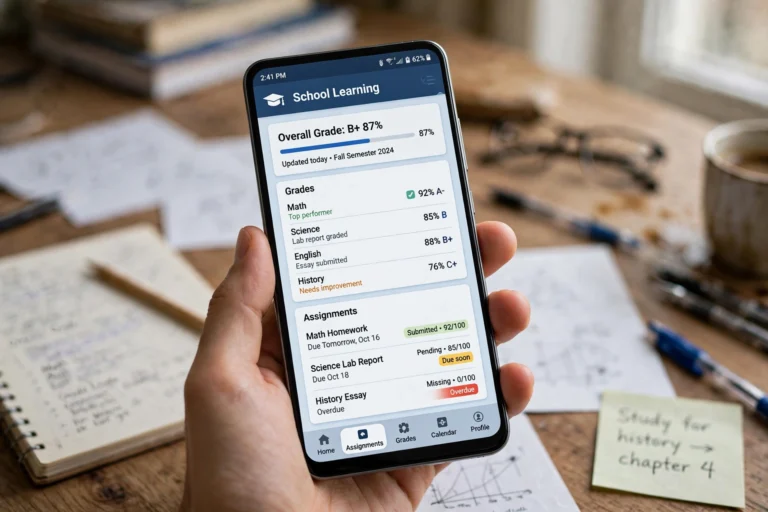
The iPad is one of the most popular ways for EPISD students to use Schoology. The Schoology iOS app is free, works with the district’s login, and gives students and parents access to courses, assignments, grades, and messages from anywhere. This guide covers installing the app, logging in, navigating it, submitting work, and fixing common problems.
Step 1: Install the Schoology App on Your iPad
- Open the App Store on the iPad.
- Search for “Schoology” — look for the official app with the blue Schoology logo.
- Tap Get and install the app. It is free and works on iPadOS versions supported by recent iPad models.
- Once installed, tap Open.
Step 2: Log In With Your EPISD Account
- Open the Schoology app and tap “Log in”.
- When prompted, search for or select your school or district — EPISD students sign in through the district’s single sign-on rather than a standalone Schoology username.
- Enter your EPISD student credentials — the same username and password used for district computers and the EPISD portal.
- Complete any multi-factor or confirmation step the district requires.
Navigating Courses, Assignments, and Grades
Courses
The Courses tab lists every class the student is enrolled in. Tapping a course opens its materials: folders of resources, assignments, quizzes, and discussion boards organized by the teacher.
Assignments
Upcoming work appears inside each course and in the Upcoming feed on the home screen. Tapping an assignment shows the instructions, the due date, and the submission options. Overdue items are flagged so nothing slips through the cracks.
Grades
The Grades tab shows scores per course, including graded assignments, running averages, and teacher comments. Remember that official report-card grades come from the EPISD Parent Portal — Schoology shows the teacher’s live gradebook.
How to Submit Assignments on the iPad
- Open the assignment from the course page or the Upcoming feed.
- Tap the submission area. Schoology on iPad supports file upload, photo/video capture, text entry, and external tools.
- After attaching or typing your work, tap Submit. Wait for the confirmation message — a submission is not recorded until you see it.
- To resubmit before the deadline, reopen the assignment and tap Resubmit.
Tip: for essays and longer work, write in a notes or word-processing app first, then paste or upload the final version. This protects against losing work if the app refreshes.
Enabling Notifications
- In the app, open your account settings (tap your profile icon).
- Open Notifications.
- Toggle on alerts for grades posted, assignment due dates, overdue work, absences, and teacher messages.
- Go to the iPad’s Settings > Notifications > Schoology and make sure system-level notifications are allowed — otherwise the in-app settings won’t reach you.
Troubleshooting Common iPad Issues
The app won’t log me in
Confirm you are selecting the district login option rather than creating a personal Schoology account. If the password works on district computers but not in the app, update the app from the App Store and try again.
Assignments won’t submit
Check the file size and format — very large videos or unsupported file types are the usual cause. Try a smaller file, a PDF export, or the text-entry option. Always wait for the submission confirmation.
The app crashes or freezes
Update to the latest version from the App Store, restart the iPad, and if the problem continues, delete and reinstall the app. Your data lives on Schoology’s servers, so reinstalling loses nothing.
Frequently Asked Questions
Is the Schoology app free on iPad?
Yes. The Schoology iOS app is free to download and use for EPISD students and parents.
Can I use Schoology in the iPad’s Safari browser instead of the app?
Yes. The Schoology website works in Safari, and some parents prefer the full desktop-style layout it shows on iPad. The app is generally faster and handles notifications better, but both connect to the same account.
How do I log out of the app on a shared iPad?
Tap your profile icon, open settings, and choose Log Out. On a family iPad, logging out after each session keeps each person’s courses, grades, and messages private.