How to Use Schoology on a Chromebook: EPISD Student Guide
How to Use Schoology on a Chromebook: EPISD Student Guide
Chromebooks are one of the most common devices EPISD students use for schoolwork, and they pair naturally with Schoology, the district’s learning management system. Whether you’re using a school-issued Chromebook or your own, this guide shows you how to sign in, find courses and assignments, submit work, and fix common problems — all from the Chrome browser.
Why Chromebooks Work Well with Schoology
Schoology runs entirely in a web browser, which makes Chromebooks a great fit. There is nothing to install, updates happen automatically, and the system is designed to work smoothly in Chrome. School-issued Chromebooks often come pre-configured with district bookmarks and single sign-on, so getting into Schoology can take just a couple of clicks.
Getting Started: Opening Schoology on Your Chromebook
- Connect to Wi-Fi. Make sure your Chromebook is connected to your home network or the school’s Wi-Fi before you begin.
- Open the Chrome browser from the shelf (the bar at the bottom of the screen) or the app launcher.
- Go to the district’s Schoology login page. Many districts provide a direct login link or a “Students” portal page with a Schoology button. Bookmark it once you find it — you’ll use it every day.
- Sign in with your student account. Use the username and password provided by your school. On school-issued Chromebooks, you may be signed in automatically through the district’s single sign-on.
Signing In the Right Way
Login problems are the number one Chromebook headache, and most come down to using the wrong account. Keep these rules in mind:
- Always use your school account, not a personal Gmail address. Schoology courses are tied to your district identity.
- On a school-issued Chromebook, sign into the device itself with your student credentials first — this usually carries you straight into Schoology and other district apps.
- On a personal Chromebook, open an incognito window or a separate Chrome profile for schoolwork to avoid conflicts with personal Google accounts.
- Never share your password, and sign out when you’re done on a shared or public device.
Navigating Your Courses
Once you’re logged in, the Schoology home page is your command center. Here’s what to look at first:
Dashboard and Recent Activity
The home feed shows recent announcements, upcoming due dates, and updates from your teachers. Check it daily — it’s the fastest way to see what needs your attention.
The Courses Menu
Click “Courses” in the top menu to see all your enrolled classes as tiles. Click a tile to enter that course, where you’ll find materials, assignments, and grades organized by folder or week.
Grades
The Grades area shows your scores per course. If a grade looks wrong or an assignment shows as missing, message your teacher through Schoology rather than guessing.
Calendar
The calendar pulls due dates from all your courses into one view. Use the week view on Sunday evenings to plan the week ahead.
Submitting Assignments from a Chromebook
Most EPISD assignments are submitted digitally through Schoology. The standard process looks like this:
- Open the course, then click the assignment name.
- Read the instructions and the due date carefully.
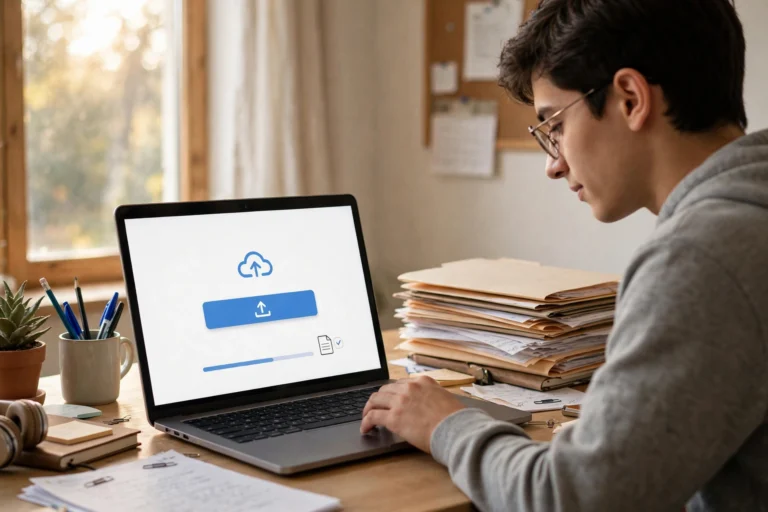
- Click Submit Assignment (or the upload button).
- Choose your file: upload from your Chromebook’s Files app, or attach from Google Drive if your document lives there.
- Confirm the file name appears in the submission box, then click Submit.
- Look for a confirmation message or a “Submitted” status with a timestamp. No timestamp means it didn’t go through — submit again.
File tips: Google Docs, Slides, PDFs, and common image formats all upload fine. If a teacher asks for a specific format, export or download your file in that format first. Keep file names simple, like “Smith_Math_HW3.pdf”.
Taking Quizzes and Tests Online
- Use a stable connection. Start quizzes on reliable Wi-Fi — a dropped connection mid-test can lock you out.
- Close extra tabs to keep the Chromebook running fast and avoid accidental navigation away from the test.
- Read the timer rules. Some quizzes are timed per question, others for the whole test. Know which before you click Start.
- Don’t refresh the page during a quiz unless your teacher tells you to — it can submit or reset your attempt.
- If the quiz freezes, take a screenshot (Ctrl + Show Windows key), note the time, and email your teacher right away.
Fixing Common Chromebook and Schoology Problems
- Page won’t load or looks broken: Hard-refresh with Ctrl + Shift + R, or clear cached images and files in Chrome settings.
- Logged into the wrong Google account: Sign out of all Google accounts, then sign back in with only your school account — or use a separate Chrome profile for school.
- Can’t upload a file: Check the file size (very large videos may exceed limits) and try a different format, like PDF instead of a photo.
- “Access denied” on a course: You may not be enrolled yet, or the teacher hasn’t published the course. Confirm with your teacher.
- Chromebook is slow: Close unused tabs and apps, restart the device, and check for ChromeOS updates in Settings.
- Touchpad or keyboard acting up: Restart first. If it persists on a school-issued device, report it to your campus tech support — don’t try to repair it yourself.
Frequently Asked Questions
Do I need to install a Schoology app on my Chromebook?
No. Schoology works fully in the Chrome browser, and the web version has every feature students need. The mobile app is only useful on phones and tablets.
Why does Schoology keep logging me out?
This usually happens when multiple Google accounts are signed into the same Chrome profile, or when cookies are being cleared. Use a dedicated school Chrome profile and avoid aggressive cookie-deleting extensions during school hours.
Can I do Schoology work offline on a Chromebook?
Only partially. Google Docs can work offline if enabled beforehand, but Schoology itself needs an internet connection to load courses and submit work. Always submit while connected.
My assignment shows as submitted but the teacher says it’s missing. What happened?
You may have attached the file without clicking the final Submit button, or uploaded to the wrong assignment. Check the submission timestamp in Schoology, and re-submit if there’s any doubt — then message your teacher to confirm receipt.
How do I take a screenshot on a Chromebook for my assignments?
Press Ctrl + Show Windows key (the rectangle with two lines, usually above the 6 key) to capture the full screen, or Ctrl + Shift + Show Windows key to select an area. Screenshots save to your Downloads folder.
What should I do if my school-issued Chromebook is damaged?
Stop using it if the damage affects the screen, battery, or charging port, and report it to your campus technology office as soon as possible. Most districts have a repair or swap process — don’t attempt DIY fixes on district property.
Using Schoology on a Chromebook is simple once your sign-in is sorted: bookmark the login page, use a dedicated school Chrome profile, check your dashboard and calendar daily, and always confirm your submissions show a timestamp. Keep this guide handy for troubleshooting, and you’ll spend your time on schoolwork — not on tech problems.