How to Take Quizzes and Tests in Schoology (EPISD Student Guide)
Quizzes and tests in Schoology look a little different from paper exams. Instead of flipping pages, you work through questions on screen, save your answers as you go, and submit everything with a single click. This guide walks EPISD students through the whole process — from opening an assessment to checking your score — plus the tips that keep small mistakes from costing you points.
Before You Start: What You Need
A smooth quiz session starts before you click anything. Make sure you have:
- Your EPISD login ready. Sign in through your district login page or student portal first, so you are not rushed by a login screen when the clock is ticking.
- A stable internet connection. Schoology saves answers as you work, but a dropped connection during a timed quiz can cost you. Use Wi-Fi rather than mobile data when possible.
- A charged device. Take quizzes on a laptop or desktop if you can — it is easier to navigate than a phone, and some question types are awkward on small screens.
- A quiet workspace. Timed tests reward focus. Close extra browser tabs, silence notifications, and keep scratch paper and a calculator handy if your teacher allows them.
How to Open a Quiz or Test in Schoology
- Log in to Schoology with your EPISD student account.
- Click Courses in the top menu, then select the course the quiz belongs to.
- Go to the course’s Materials page. Quizzes appear as items labeled Test/Quiz.
- Click the quiz title to open its description page. Read your teacher’s instructions carefully — they often include the time limit, number of attempts, and whether you can go back to previous questions.
- Click Start (or Attempt Quiz Now) to begin. On a timed quiz, the clock starts the moment you click.
Tip: If you do not see the quiz in the course materials, check the Upcoming section on your Schoology home page or the course calendar. If it still is not there, message your teacher — it may not be published yet.
Question Types You Will See
Schoology supports several question formats. Knowing how each one behaves saves you surprises mid-test.
Multiple Choice and True/False
Click one answer per question. Your selection is saved automatically, but double-check your pick before moving on — it is easy to misclick when scrolling quickly.
Fill in the Blank and Short Answer
Type your answer into the text box. Spelling and exact wording can matter here, so proofread before submitting. If the question asks for a number, do not include units unless the instructions say to.
Matching and Ordering
Drag each item to its match or drag items into the correct order. On touchscreens, drag-and-drop can be finicky — use a mouse if one is available.
Essay / Long Answer
You get a larger text box for written responses. Draft longer essays in a separate document first and paste them in, so you do not lose your work if the browser glitches.
Test-Taking Tips That Actually Help
- Answer every question, then review. If a question stumps you, answer the rest, and come back. An unanswered question earns zero points; a guess can earn points.
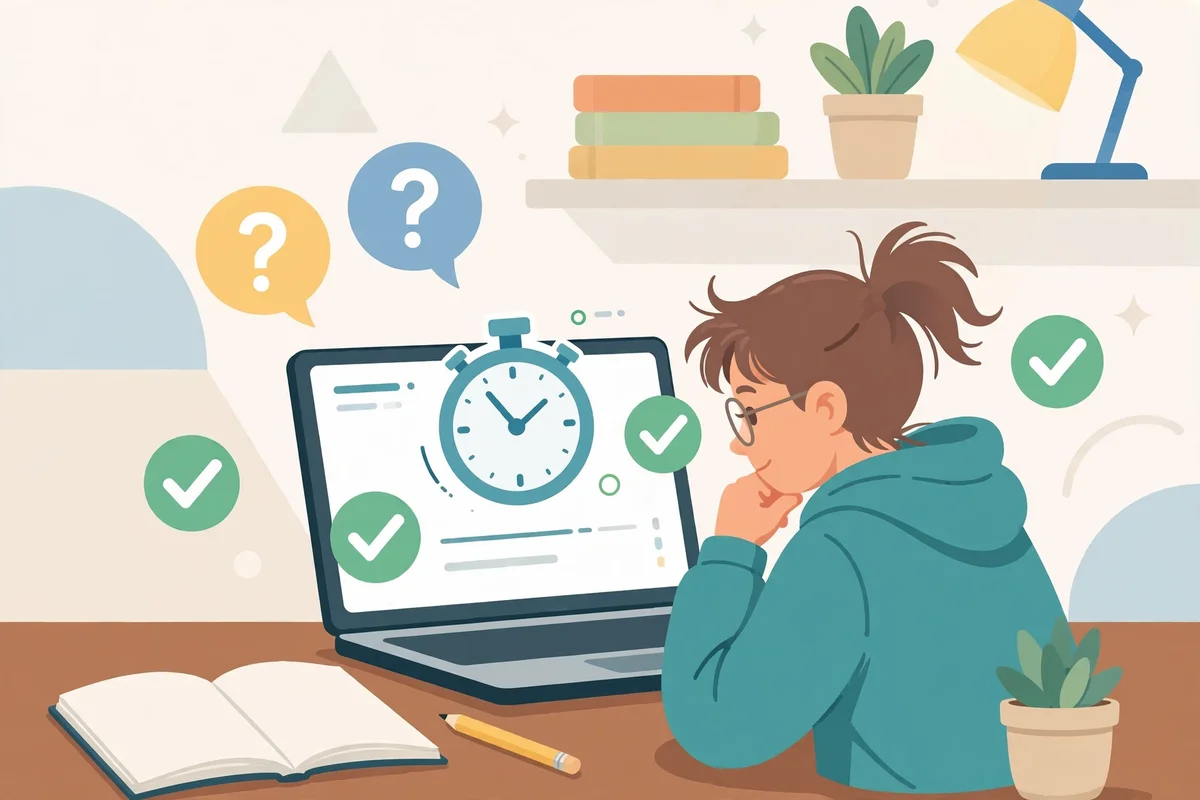
- Watch the timer, not just the questions. Keep an eye on the countdown shown on screen. If a quiz has 20 questions and 30 minutes, aim for roughly 90 seconds per question.
- Never refresh the page mid-quiz. Refreshing can reset your session or mark the attempt as finished, depending on your teacher’s settings. If the page freezes, wait a moment before doing anything.
- Save before submitting. Schoology auto-saves, but on long essay responses click any available Save option before you hit submit.
- Read every question twice. Words like not, except, and always change the meaning entirely. Most careless errors come from reading too fast.
- Use one tab only. Opening the quiz in two tabs can confuse the system and lock you out of one attempt.
How to Submit Your Quiz
- When you finish, click Submit Quiz or Finish Attempt at the bottom of the page.
- Schoology will show a confirmation screen listing any questions you left blank. Review it — this is your last chance to go back.
- Click Submit again to confirm. You should see a success message or be returned to the quiz page.
Important: Simply closing the browser tab does not submit your quiz. Always use the submit button, and wait for the confirmation screen before leaving.
Checking Your Score and Feedback
After submitting, your score may appear right away — or not, depending on your teacher’s settings. To check:
- Go to the course and click Grades (or the gradebook icon).
- Find the quiz in your grade list. Your score and any teacher comments appear there.
- Some teachers allow you to review your answers. If so, click the quiz title to see which questions you got right or wrong.
Frequently Asked Questions
What happens if my internet drops during a timed quiz?
Schoology auto-saves your answers, so most of your work is preserved. Reconnect and reload the page as soon as possible — the timer usually keeps running, so act quickly. If you get locked out, contact your teacher right away; they can often reopen the attempt.
Can I retake a quiz in Schoology?
Only if your teacher allows multiple attempts. The quiz description page tells you how many attempts you have. If you need a retake for a technical issue, message your teacher — they control attempt settings.
Why does my quiz say “Not Attempted” after I submitted?
This usually means the submission did not complete — you may have closed the tab before confirming. Reopen the quiz; if your answers were auto-saved, submit again. If the attempt looks finished, check your gradebook or ask your teacher to verify.
Can I take a Schoology quiz on the mobile app?
Yes, the Schoology app supports quizzes, but a laptop or desktop gives you a better experience, especially for drag-and-drop and essay questions. If you must use the app, keep it updated and stay on Wi-Fi.