
How to Use the Schoology Calendar in EPISD: Track Assignments and Events
Between homework, quizzes, projects, and school events, it is easy to lose track of what is due when. The Schoology calendar puts all of it in one place: every assignment with a due date, every quiz, and every event your teachers post shows up automatically, organized by day, week, or month.
In this guide, you will learn where to find the calendar in Schoology, how to read its color-coding, how to open any event for details, how to sync it with your phone or Google Calendar, how to use it together with the Upcoming list, and how the calendar works in the mobile app.
Where to Find the Calendar
On the Schoology website, click the calendar icon in the top menu bar. That opens the full calendar view for everything across all your courses.
In the Schoology mobile app, open the main menu (the three-line icon) and tap Calendar. You can switch between day, week, and month views by tapping the view selector at the top of the screen.
New to the platform entirely? Our overview of what Schoology EPISD is will get you oriented first.
Understanding the Color-Coding
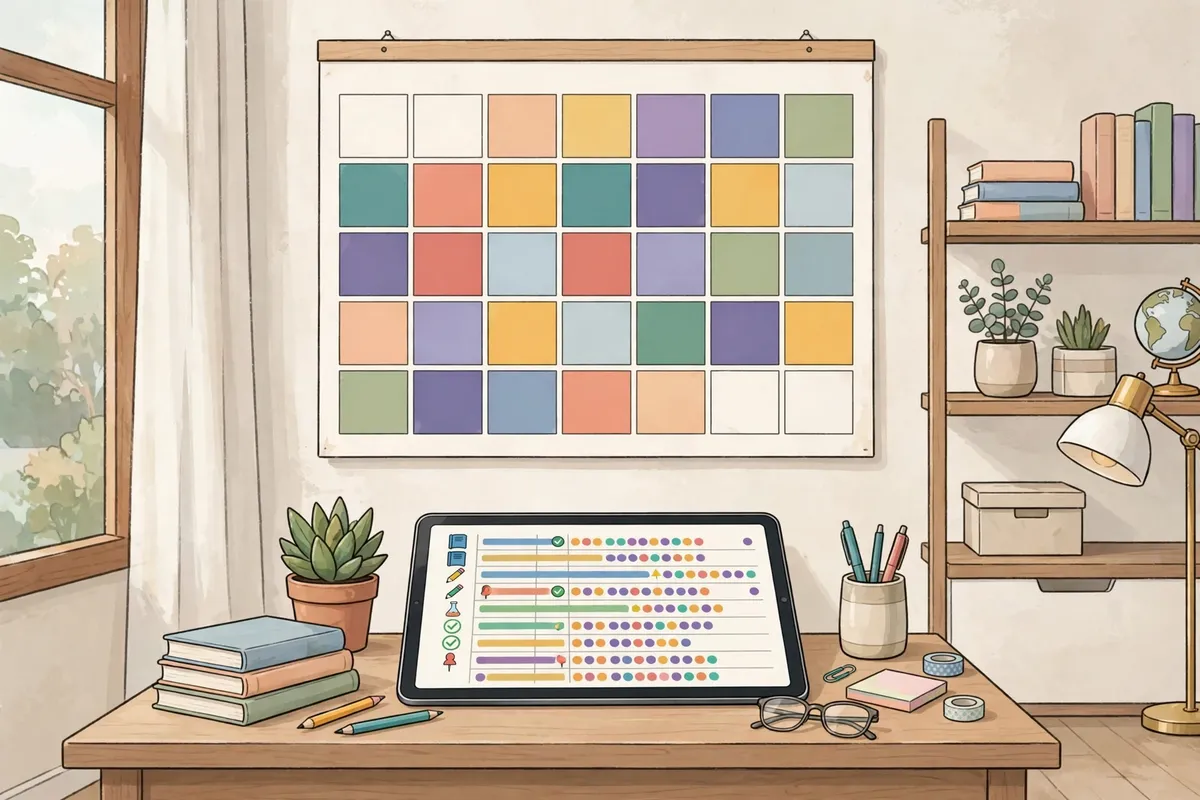
Each of your courses gets its own color in the calendar, so you can tell at a glance which class an item belongs to. For example, all math assignments might appear in blue while English items appear in green. Your personal events — ones you add yourself — show in a separate color.
Look for the legend (usually along the side or bottom of the calendar) that maps each color to its course. If two courses share similar colors and it gets confusing, check with your teacher or school.
Clicking an Event for Details
Every item on the calendar is clickable. Click or tap any assignment, quiz, or event to open a detail window showing:
- The title and which course it belongs to
- The due date and time
- The description or instructions the teacher added
- Any attached files or links
- A link to open the full assignment page, where you can submit work or see your score
This makes the calendar a great starting point for homework: scan the week, click each item, and you will know exactly what each teacher expects. When work is graded, you can review the results with our guide on how to check grades in Schoology.
Using the Calendar With the Upcoming List
On your Schoology home page, the Upcoming column (usually on the right side) lists assignments and events due soon, in chronological order. Think of it this way:
- Upcoming answers “what is due next?” — perfect for tonight’s homework.
- Calendar answers “what does the whole week or month look like?” — perfect for planning around big tests and project deadlines.
Get in the habit of checking Upcoming daily and the calendar weekly. Students who do both rarely get surprised by a deadline.
Syncing the Calendar With Your Phone or Google Calendar
If you live in Google Calendar or Apple Calendar, you can pull your Schoology calendar into it so school due dates sit alongside everything else:
- On the Schoology website, open the Calendar.
- Look for the calendar settings or options area (often a small gear icon or a “Calendar Feeds” style option).
- Copy the external calendar feed link (an iCal-style URL) provided for your account.
- In Google Calendar, use “Add calendar > From URL” and paste the link. In Apple Calendar, use File > New Calendar Subscription and paste the link.
- Save, and your Schoology items will appear in your personal calendar.
A few things to keep in mind: the sync is one-way (changes you make in Google Calendar do not go back into Schoology), and updates can take several hours to appear, so the Schoology calendar itself is always the most up-to-date source. If the feed option is not visible in your account, your school may have it disabled — ask your teacher.
Using the Calendar in the Mobile App
The app calendar covers the essentials:
- Swipe or use the arrows to move between days, weeks, and months.
- Tap any dot or item to see that day’s assignments and events.
- Tap an item again to open its details, just like on the website.
- Turn on push notifications for the Schoology app so you get reminded about upcoming due dates.
Tips to Stay on Top of Due Dates
- Do a nightly check. Two minutes scanning tomorrow’s items prevents most missed assignments.
- Plan backwards from big dates. See a project due in two weeks? Break it into smaller tasks across the days before it.
- Add your own events. You can create personal calendar events for things like “study for science test,” so your plan lives next to your official due dates.
- Keep notifications on. In your account notification settings, enable reminders for upcoming and overdue items.
- Parents can watch too. With a parent account, guardians can see the same calendar view for their child’s courses. If you have not set one up yet, see our parent access code guide.
Frequently Asked Questions
Why don’t I see an assignment on the calendar?
The most common reasons: the teacher did not set a due date for it, you are not enrolled in that course yet, or the item was posted very recently and the view needs a refresh. If an assignment exists on the course page but not on the calendar, ask your teacher whether a due date was set.
Can I add my own events to the Schoology calendar?
Yes. Schoology lets you create personal events, which appear in your calendar in their own color. These are visible only to you.
Do past events disappear from the calendar?
No. You can scroll back to previous weeks and months to review what was due and when.
The times on my calendar look wrong. What should I do?
Check the timezone setting in your Schoology account settings. If it is set to the wrong zone, due times will display incorrectly. El Paso is in the Mountain Time Zone.
Does the calendar show events from all my courses at once?
Yes, by default. Most calendar views let you filter by course using the legend or a filter menu.
Why is an event on the calendar but not in my Upcoming list?
The Upcoming list typically covers a short window (the next several days), while the calendar shows everything. An event three weeks out will be on the calendar long before it appears in Upcoming.





2 Comments