Schoology Grade Icons and Symbols Explained: What They Mean (EPISD Guide)
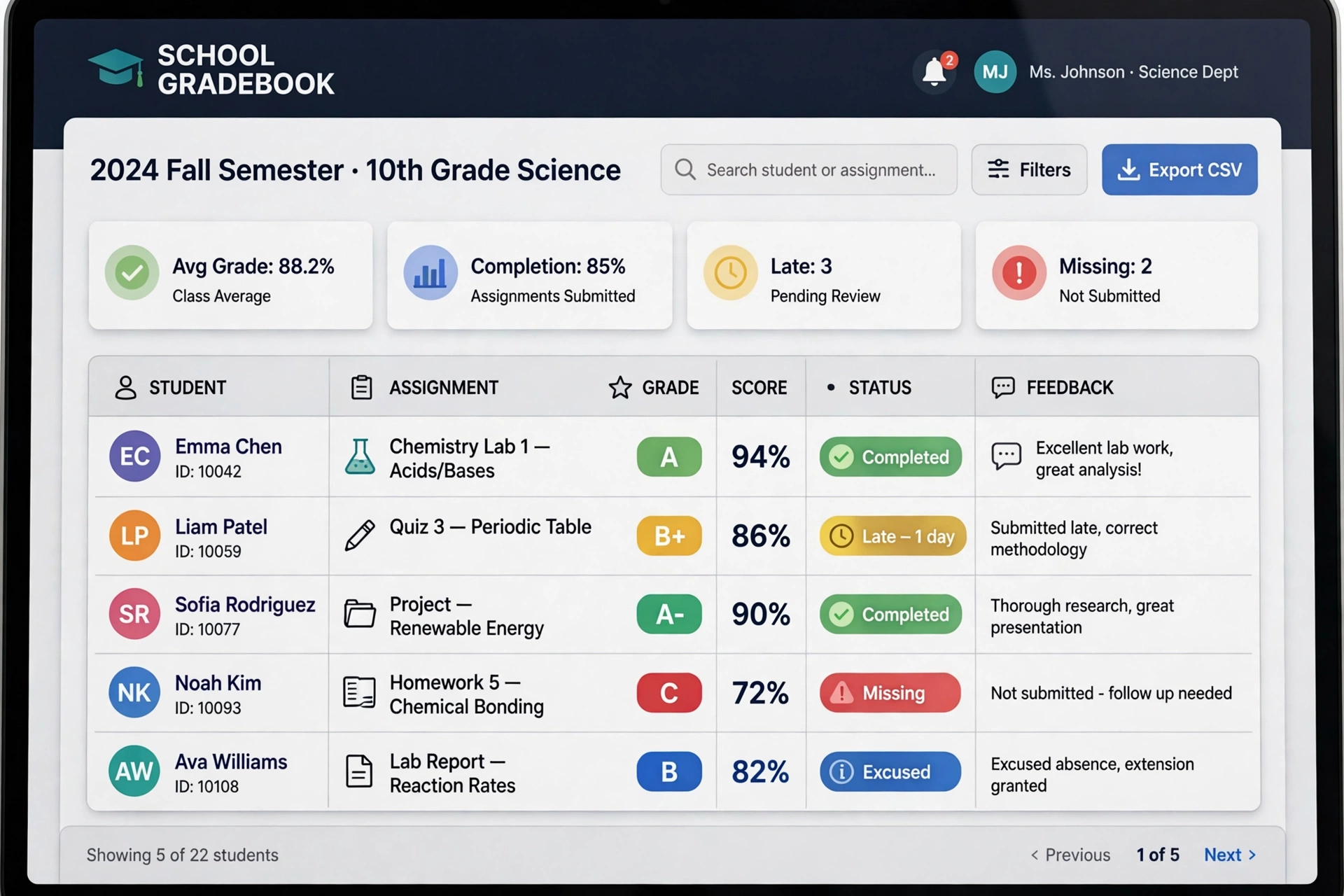
Open the gradebook in Schoology and you’ll see more than numbers — small icons and symbols next to assignments carry important information about your work. A red mark might mean an assignment is missing, a different symbol might mean it was excused, and another might mean it doesn’t count toward your grade at all. For EPISD (El Paso Independent School District) students and parents, knowing what each icon means is the difference between panicking over nothing and catching a real problem early. This guide explains the common Schoology grade symbols and what to do about each one.
Where to Find Grade Icons in Schoology
Icons appear in two main places:
- The Grades tab inside each course — shows every assignment with its score and any symbols.
- The overall Grades page — shows your current grade per course at a glance.
Hovering over (or tapping) an icon usually shows a short label explaining it. The exact appearance can vary slightly between the website and the mobile app, but the meanings stay the same.
Common Grade Icons and What They Mean
Missing
Typically shown as a red indicator or a “missing” label. This means the due date passed and no submission was recorded. In most grading setups, a missing assignment counts as a zero until you turn it in — so this is the icon to act on fastest. If you believe you did submit the work, check the assignment’s submission status and contact your teacher.
Late
Often shown with a clock or “late” tag. Your work was submitted after the due date. Whether late work loses points depends on your teacher’s policy — some deduct a percentage per day, others accept it for reduced credit, and some don’t accept it at all. Check the course syllabus or ask your teacher.
Excused
Usually marked with an “excused” label or a distinctive icon. The teacher has excused you from the assignment — it does not count for or against your grade, and it doesn’t lower your total possible points. Excused is different from a zero: a zero drags your average down, while an excused assignment is simply skipped in the calculation.
Dropped
May appear as a struck-through entry or a “dropped” marker. Many teachers drop the lowest quiz or homework score. A dropped assignment is excluded from your grade calculation entirely — it’s generally good news, not a problem.
Extra credit
Often marked with a plus sign or “extra credit” label. These assignments add points on top of your regular total rather than being part of the required work. They can lift your average but typically can’t make up for missing required assignments on their own.
Overdue / Not yet graded
An assignment may show as submitted but awaiting a grade, or as past due without a missing flag yet. If your teacher grades on a delay, give it a few days before asking — but if an assignment you submitted weeks ago still shows no grade, follow up politely.
Graded with comments
A speech-bubble or comment icon means the teacher left feedback on the assignment. Always open these — comments explain why points were lost and how to improve, which is especially valuable before a retake or the next similar assignment.
Submitted (awaiting grade)
A checkmark or “submitted” indicator confirms Schoology received your work. It doesn’t mean it’s graded yet — just that it’s in the teacher’s queue. If you submitted but see no indicator, your upload may have failed.
How These Icons Affect Your Grade
Not every symbol changes your average the same way:
- Counts as zero (hurts your grade): Missing — until you submit it.
- Counts, possibly reduced: Late — per the teacher’s late policy.
- Does not affect your grade: Excused, Dropped — excluded from the calculation.
- Adds points: Extra credit — bonus on top of your total.
- Submitted (awaiting grade): confirms Schoology received your work — it’s in the teacher’s queue, not yet graded.
This is why two students with the same letter grade can have very different situations — one might have all work in, while the other has missing assignments pulling the average down. The icons tell the real story.
What Parents Should Watch For
If you’re an EPISD parent checking Schoology, the icons give you a quick read on your child’s progress:
- Scan for “missing” first. One missing assignment can drop a grade a full letter. Ask your child about it the same day you spot it.
- Check “late” patterns. Occasional late work happens; a growing pattern of late submissions signals a time-management problem worth discussing.
- Read teacher comments. The comment icon often contains the most actionable information — specific feedback your child can use.
- Don’t panic at “excused” or “dropped.” These are neutral or positive. Save your concern for missing and late.
What to Do When You See a Concerning Icon
- Missing: Submit the work immediately if the teacher still accepts it. If the submission window closed, message the teacher to ask about options — some allow partial credit.
- Late: Confirm the work was actually received (look for the submitted indicator), then ask about the late penalty so you know where you stand.
- Unexpected zero or symbol: Message your teacher through Schoology with the assignment name and date. Include a screenshot of what you see. Most icon mix-ups are data-entry issues that teachers fix quickly.
- Grade doesn’t match your math: Remember that excused and dropped items are excluded and categories may be weighted. Ask your teacher to explain the weighting if the numbers look off.
Tips for Students: Keep Your Gradebook Clean
- Check the Grades tab in each course at least once a week — catching a missing assignment early is far easier than recovering from one at the end of the term.
- Turn on Schoology notifications so you’re alerted when grades post and when due dates approach.
- If a teacher excuses an absence-related assignment, confirm the excused icon appears — don’t assume.
- Before a grading period ends, review every course’s gradebook for unresolved missing or late icons.
Frequently Asked Questions
Does a missing assignment always count as a zero?
In most Schoology grading setups, yes — a missing assignment counts as zero points until you submit it. That’s why the missing icon deserves immediate attention.
What’s the difference between excused and dropped?
Both are excluded from your grade calculation. The practical difference is intent: excused usually means the teacher released you from that specific assignment (often for an absence), while dropped usually means the teacher’s policy automatically removes your lowest score in a category.
Can an icon be wrong?
Yes. Teachers enter grades manually, and sync delays happen. If an icon contradicts what you know (for example, “missing” on work you submitted), message your teacher with details and a screenshot.
Do parents see the same icons students see?
Generally yes. Parent accounts in Schoology show the same gradebook view with the same icons and symbols, so parents and students can discuss the same information.