How to View Teacher Feedback and Comments on Schoology Assignments (EPISD Guide)
Getting a grade back is only half the story. The real learning often sits in the comments your teacher left — a note about a strong argument, a correction on a calculation, or a suggestion for your next draft. If you are an EPISD student using Schoology, that feedback is not hidden, but it is spread across a few different places depending on how your teacher graded the work. This guide shows you exactly where to look, how to read annotated comments, and what to do once feedback arrives.
Where Graded Feedback Appears in Schoology
The quickest route to feedback is through the assignment itself. Open the course, find the assignment, and look for your submission status. Once a teacher has graded it, the assignment page usually shows your score, a grade comment, and any attached feedback files. If you submitted through Schoology, your original submission and the teacher’s response sit side by side, so you can compare what you wrote with what the teacher noticed.
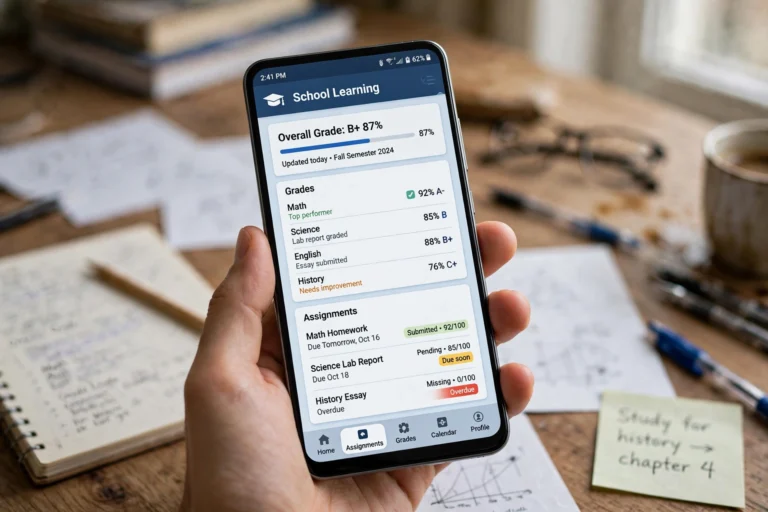
You can also reach feedback from the Grades area. Inside your course, open Grades and click on an individual assignment score. That view often links straight back to the graded submission and its comments. For a quick check across all subjects, the main Grades page shows recent scores, but the detailed comments live inside each course, not on the overview screen.
What to do if you see a grade but no comment
Not every assignment gets a written comment. Some teachers grade with a rubric only, some leave a short overall note, and some give detailed line-by-line feedback. A score with no comment does not necessarily mean something went wrong — it may simply mean the assignment was graded on points alone. If you are unsure why you lost points, that is a good reason to ask, as explained below.
Understanding Annotated Comments
Many teachers annotate directly on student work, especially for essays, reports, and presentations. Depending on the file type, annotations can appear as highlighted text, margin notes, or comment bubbles on the document itself. Open the graded file from the assignment page and scroll through it slowly rather than reading only the final score.
- Highlights: draw your eye to a specific sentence, answer, or section the teacher wants you to notice.
- Margin or inline comments: explain why something worked, what was unclear, or what to change next time.
- Rubric feedback: shows how you scored on each criterion, such as content, organization, evidence, or mechanics.
- Overall comments: a summary note at the top or bottom of the assignment, often with encouragement and next steps.
Feedback on Different Assignment Types
Written assignments and essays
Expect the most detailed comments here. Teachers may mark grammar, structure, and argument quality directly on the text. If your document was returned as a new file, download it and compare it with your original submission so no comment is missed.
Quizzes and tests
Feedback on quizzes is usually shorter: correct answers, points per question, and sometimes a brief explanation. Some teachers allow you to review your answers after submission, while others restrict review to a set window. Check the quiz page for a “Review” option after grading.
Discussion posts and group work
Comments on discussions often appear as replies to your post rather than as a grade comment. Open the discussion thread and look for your teacher’s reply. For group projects, feedback may be shared with the whole group, so check both the assignment page and any group discussion area.
Resubmission After Feedback
Sometimes feedback comes with a second chance. If your teacher allows resubmission, the assignment page will show an option to submit again, often with a new due date. Before resubmitting, read every comment carefully and make a checklist of the changes requested. Address each point visibly — rewrite the unclear paragraph, add the missing evidence, or correct the calculation — rather than resubmitting the same file unchanged.
When you resubmit, add a short note in the submission comment box if one is available, summarizing what you changed. For example: “Revised the conclusion, added two sources, and corrected the data table as suggested.” That note helps your teacher grade the revision faster and shows that you used the feedback seriously.
Asking Follow-Up Questions
Good feedback sometimes raises new questions, and asking them is part of learning, not a sign of failure. Before you message your teacher, re-read the comment and the relevant part of your work so your question is specific. “Can you explain what you meant by ‘unclear thesis’ in paragraph two?” will get a far more useful answer than “Why did I get this grade?”
Use Schoology’s messaging feature or the course discussion area your teacher prefers, and keep your message polite and brief. Mention the assignment name, the comment you are asking about, and what you have already tried. Teachers handle many students, so a clear, specific question is much easier to answer quickly.
Tips for Using Feedback Well
- Check feedback promptly. Comments are most useful while the assignment is still fresh in your mind.
- Do not focus only on the score. A high score with comments still tells you what to keep doing; a lower score with comments tells you exactly how to improve.
- Look for patterns. The same comment across assignments is your biggest opportunity for improvement.
- Save strong work. When a teacher praises a section, keep that example as a model for future assignments.
- Apply feedback before the next deadline. Feedback only helps if it changes what you do next.
Frequently Asked Questions
Where do I find teacher comments on a graded Schoology assignment?
Open the assignment inside its course. Graded feedback — the score, grade comments, rubric scores, and annotated files — appears on the assignment page or by clicking the score in the Grades area.
Why can I see my grade but not my teacher’s comments?
Your teacher may have graded with points or a rubric only, without written comments. It is also possible the feedback is attached as a file you need to open, or posted as a reply in a discussion. If nothing appears, ask your teacher directly.
Can I resubmit an assignment after receiving feedback?
Only if your teacher has enabled resubmission for that assignment. Look for a resubmit option on the assignment page, and check for a revised due date. If there is no option, apply the feedback to your next assignment instead.
How should I ask my teacher about feedback I don’t understand?
Be specific: name the assignment, quote or describe the comment, and ask one clear question. Use Schoology messaging or whichever channel your teacher prefers, and keep the message polite and brief.
Do parents see teacher feedback too?
Parents with a Schoology parent account can usually see grades and, depending on the assignment setup, some feedback. Students see the most complete view, including annotated files, from their own account.
Check your graded assignments regularly, learn from the patterns in your teachers’ comments, and ask follow-up questions whenever a comment is unclear.