How to Upload Files, Photos and Documents in Schoology Assignments (EPISD Guide)
Uploading your finished work is the final step of a Schoology assignment — and sometimes the trickiest. Whether it’s a Word document, a photo of handwritten notes, or a slide deck in Google Drive, this guide walks you through every upload method step by step.
Uploading Files from the Assignment Page
The most common way to submit files in Schoology is right from the assignment page. The process is the same for students logging in at schoologyepisd.com or through the EPISD portal, on a Chromebook, laptop, or desktop computer.
Follow these steps:
- Log in to Schoology and open the course the assignment belongs to.
- Click the assignment title from the course materials list or the Upcoming section on your homepage.
- Read the assignment instructions and check the due date and any special submission requirements.
- Click the Submit Assignment button (top right of the assignment page).
- In the submission window, click Upload. A file picker opens.
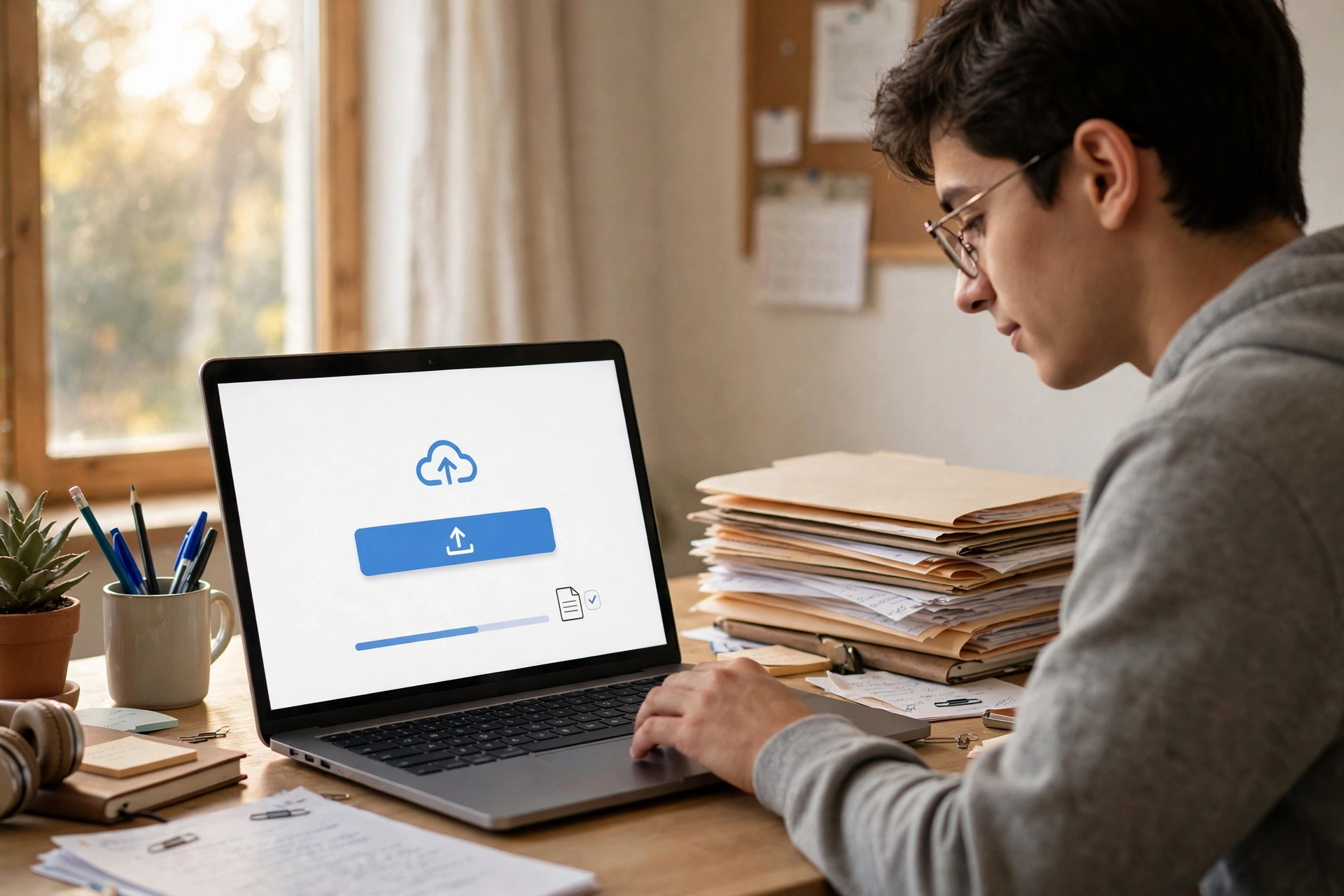
- Browse your computer, select the file, and click Open. Schoology shows the file name and a progress bar while it uploads.
- Wait until the progress bar finishes — do not close the window or navigate away while the file is uploading.
- Once the upload completes, click Submit to turn in the assignment.
You can attach more than one file to a single assignment: repeat steps 5–6 for each file before clicking Submit — handy for projects with separate files, such as a report plus a data spreadsheet.
Uploading Photos from Your Phone or Camera
Many EPISD students complete written work on paper and submit photos of it. Schoology’s mobile app makes this easy.
- Open the Schoology app on your phone and sign in with your EPISD student account.
- Navigate to the course, then tap the assignment.
- Tap Submit Assignment, then tap Upload.
- Choose Take Photo to snap a picture of your work right now, or Photo Library to pick an image already saved on your phone.
- If you take a new photo, hold the phone steady, frame the whole page, and check that the writing is readable before accepting the shot.
- Tap Submit to turn in the assignment.
Tips for Clear, Readable Photos
- Photograph pages in bright, even light — a desk lamp or window light works better than a flash.
- Lay the paper flat and fill the frame with the page; avoid shadows from your hand or phone.
- Take one photo per page and upload all of them together, in order.
- Zoom in and re-read the text — if you can’t read it, neither can your teacher.
Submitting from Google Drive or OneDrive
If your file lives in Google Drive or Microsoft OneDrive, you can attach it directly without downloading it first. Click Submit Assignment, choose Google Drive or OneDrive, sign in and authorize the connection the first time, select your file, and click Submit. Sharing tip: if you submit a Drive link rather than the file itself, set sharing to “anyone with the link can view” (or share directly with your teacher) so they can open it.
File Types and Size Limits
Schoology accepts most common file types: documents (DOC, DOCX, PDF, TXT, ODT), spreadsheets (XLS, XLSX), presentations (PPT, PPTX), images (JPG, PNG, WEBP), audio (MP3), and video (MP4). PDF is the safest choice because it looks identical on every device. Note the limits: files up to 512 MB (some campuses set smaller limits, so keep videos compressed), executable files (EXE, BAT) are blocked for security, and avoid characters like # % & in file names, which can cause upload failures.
How to Replace or Resubmit a Submission
Submitted the wrong file? Don’t panic. If your teacher has enabled resubmission for the assignment, fixing it takes a minute:
- Open the assignment page. You will see your current submission listed.
- Click Resubmit Assignment (it appears only when the teacher allows multiple attempts).
- Upload the correct file, then click Submit again.
If the due date has passed and the assignment locked, resubmission may be unavailable — message your teacher through Schoology to explain and ask for it to be reopened.
How to Confirm Your Upload Succeeded
Run through this quick checklist every time:
- The assignment page shows your file name(s) with a Submitted status — not “Draft” or a blank submission box.
- A timestamp appears next to your submission. Compare it to the due date to confirm you are on time.
- You received a submission confirmation email from Schoology (check your notification settings if you don’t get these).
- Click the attached file name on the assignment page to open it — confirm it is the correct file and it opens properly.
- The assignment no longer appears as “Overdue” in your Upcoming list.
If any of these are missing, try submitting again. If the problem persists, take a screenshot of the error and contact your teacher or the campus technology support team right away — do not wait until after the due date.
Fixing Common Upload Problems
Most upload failures come down to four causes — here is the quick fix for each:
- Upload stalls or fails halfway: usually a weak connection or a large file. Move closer to school Wi-Fi, compress large images or videos, and upload one file at a time.
- “File type not allowed”: the teacher restricted the assignment to certain formats. Convert your file (e.g., export a Google Doc to PDF) and re-upload.
- Submit button greyed out: Schoology needs at least one finished upload before Submit activates. Wait for the progress bar to complete, then click Submit.
- File doesn’t appear in the submission box: clear your browser cache, use Chrome or Edge, and re-upload.
Frequently Asked Questions
Can I submit a Schoology assignment by email instead?
Only if your teacher specifically allows it. Teachers grade inside Schoology, so emailed work can be missed — always submit through the assignment page unless told otherwise.
What happens if I upload after the due date?
Schoology accepts the file and marks it as late with the submission time. Whether late work loses points depends on your teacher’s grading policy — check the course syllabus.
Can my teacher see my files before I click Submit?
No. Files you attach in the submission window are not visible to your teacher until you click Submit. They only see what you officially turn in.
How many files can I attach to one assignment?
Schoology allows multiple files per submission unless the teacher limited the assignment. Attach each file before clicking Submit so they all go in together.
My phone says the file is too big to upload. What do I do?
Reduce the file size: lower your camera resolution, compress PDFs, or trim videos. If it still fails, upload from a computer on school Wi-Fi.
Conclusion
Uploading files, photos, and documents in Schoology is straightforward once you know the workflow: open the assignment, click Submit Assignment, attach your files (from your device, your phone camera, or Google Drive/OneDrive), wait for the upload to finish, and click Submit. Build the habit of confirming every submission — check the Submitted status, open your attached file, and watch the due date. With these steps, your EPISD coursework will always arrive on time and in the right format.