

How to Check Grades in Schoology (EPISD): Step-by-Step Guide
How to Check Grades in Schoology: Quick Answer
Log in at app.schoology.com (or open the Schoology app), click Grades at the top menu, and select any course to see detailed scores. Parents: log in with your parent account — the steps are the same.
Method 1: Check Grades on the Schoology Website
- Go to app.schoology.com and log in with your EPISD credentials
- Click Grades in the top navigation bar
- You’ll see a list of all your courses with current overall grades
- Click any course to expand it — you’ll see every assignment, quiz, and test with the score you received
- Click Summary within a course for a quick overview, or browse the full breakdown by grading period
Download a Grade Report
- In the Grades area, select Grade Report
- Choose the current grading period (e.g., Semester 1, Quarter 2)
- Select the courses to include, then click Submit to generate a printable report
Method 2: Check Grades in the Schoology App
There are two ways to reach your grades in the mobile app:
- Option A: Tap the menu (three lines, top-left) → Grades → choose a course
- Option B: Open a course from the home screen → tap Grades (top-right)
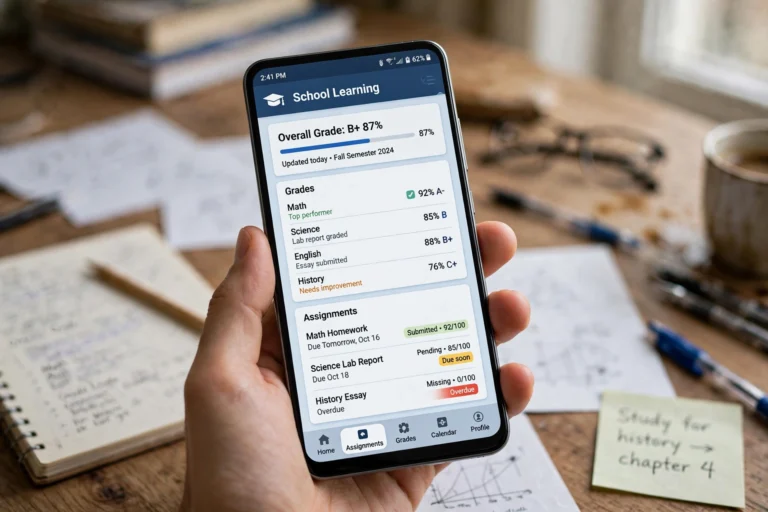
On the grade page you’ll see the overall course grade at the top, any semester exam grade, and grades broken down by grading period — with individual assignment scores underneath.
Understanding Your Schoology Grades
- Asterisk (*) next to an assignment means it hasn’t been graded yet — your teacher still needs to review it
- Missing / 0 usually means the assignment wasn’t submitted — submit it ASAP or ask your teacher about late policies
- Excused means the assignment doesn’t count toward your grade
- Grades are organized by grading period (quarters/semesters) — make sure you’re viewing the current one
For EPISD Parents: Monitoring Your Child’s Grades
Log in with your parent account (you’ll need a Parent Access Code to set one up). You’ll see the same Grades view — read-only — for each linked child. Check weekly: catching a slipping grade early in the quarter is much easier to fix than at report-card time.
Tip: Turn on Schoology notifications (in the app or under Settings on the website) to get alerts when new grades are posted.
Troubleshooting
Grades aren’t showing / page is blank
You’re likely looking at the wrong grading period — switch to the current quarter. At semester start, teachers may not have posted anything yet.
Grade looks wrong
First check for ungraded (*) assignments — they don’t count until scored. If a score itself looks wrong, message your teacher directly through Schoology.
Can’t see a course at all
The teacher hasn’t enrolled you yet, or enrollment hasn’t synced. Wait 24 hours, then ask the teacher to confirm.
Frequently Asked Questions
How often are Schoology grades updated?
Whenever your teacher grades work — there’s no fixed schedule. Most EPISD teachers update weekly.
Do parents see the same grades as students?
Yes — parent accounts show the same grade data, in read-only mode.
What’s the difference between Schoology grades and report card grades?
Schoology shows live, in-progress grades. Official report card grades are finalized by the school at the end of each grading period.



One Comment
Comments are closed.