
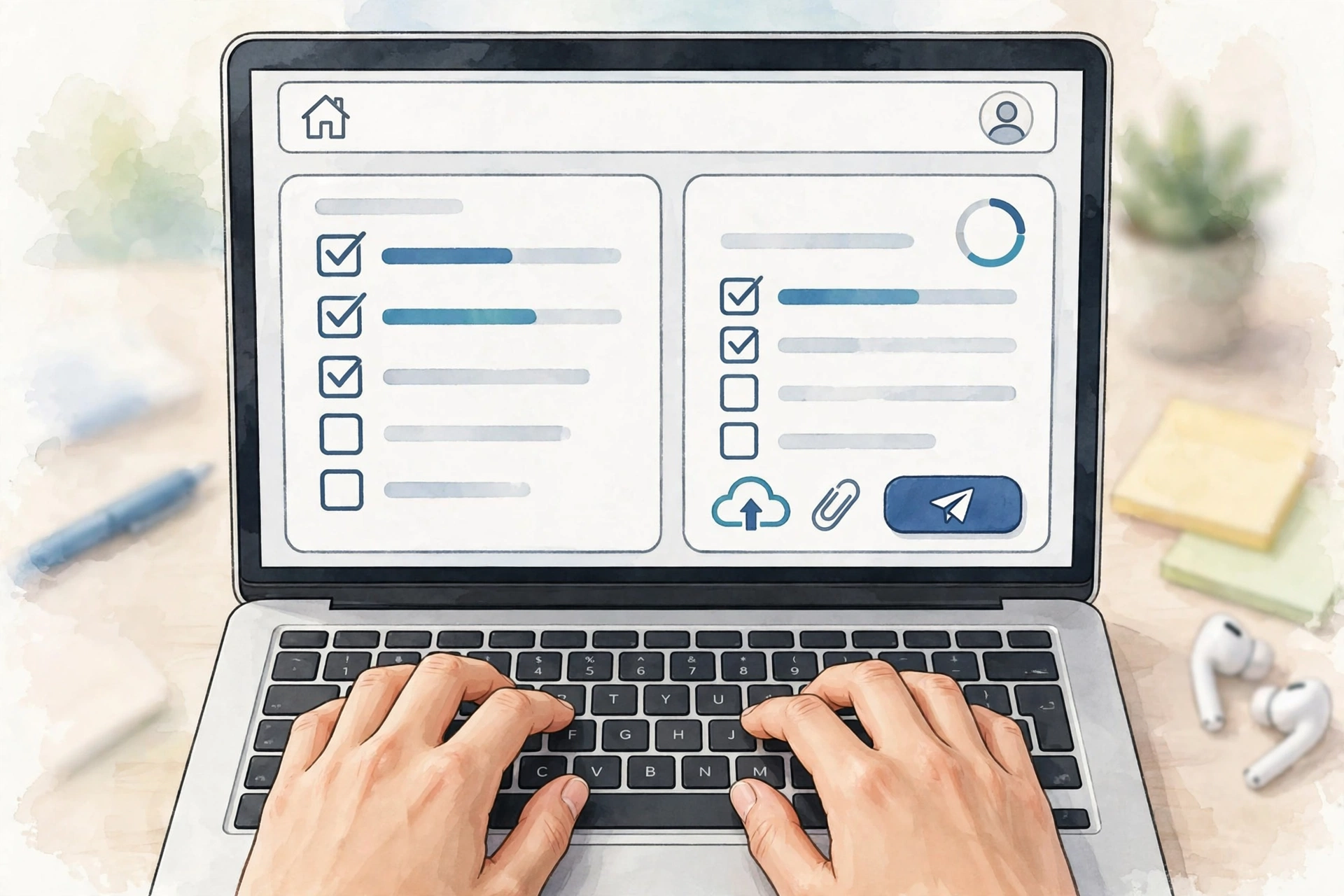
How to Submit Assignments in Schoology (EPISD): Complete Student Guide
For EPISD students, Schoology is where teachers post assignments and where you turn your work in. New to the platform? Start with our overview of what Schoology EPISD is, then learn how to submit assignments step by step. Submitting correctly means your teacher actually receives your work, it gets graded on time, and you never lose points over a simple technical mistake.
Finding Your Assignments
You can find assignments in two places:
- Your dashboard: The Upcoming column on the right lists assignments due soon across all your courses, with due dates beside each one. Click any title to open it.
- The courses page: Click Courses in the top menu, pick a class, and open the Materials tab. Assignments show up with a document-like icon, often organized in folders.
The Upcoming column color-codes items, so anything overdue shows in red at a glance. The Schoology EPISD app also shows upcoming assignments on its home screen for checking work on your phone.
Opening the Assignment Details
Clicking an assignment opens its details page. Read it before you hit any submit button — it tells you exactly what your teacher expects:
- Instructions — what you need to produce (an essay, a worksheet, a presentation, and so on).
- Due date and time — anything submitted after this is marked late.
- Rubric — if attached, it shows how the work will be graded. Read it before you start.
- Attached files — templates or reading material you may need to download first.
At the top of the page you will see a Submit Assignment button. Clicking it opens the submission window with several ways to turn in your work.
Submitting Files: Documents, PDFs, and Images
Uploading a file is the most common way to submit work. In the submission window, choose the Upload tab:
- Click Attach Files and select the file from your device.
- Common formats work fine: Word documents (.doc, .docx), PDFs, PowerPoint files, and images (.jpg, .png).
- When the upload finishes, the file appears listed with its name and size.
- Click Submit to send it to your teacher.
Always double-check that the right file attached before submitting — uploading the wrong version is one of the most common student mistakes. Make sure the file opens on your own device first, and use clear file names (like “Rosa_Essay1.docx”).
Linking Google Drive or OneDrive
If your work lives in the cloud, you do not need to download and re-upload it. Schoology lets you link files directly from Google Drive or OneDrive:
- In the submission window, choose the Google Drive / OneDrive option and sign in if prompted.
- Pick the file you want to submit, confirm the selection, and click Submit.
Important: if you link a Google Doc, make sure your teacher can view it. A link to a private document looks like a successful submission on your end, but your teacher will only see a “request access” page. Set the file to “Anyone with the link can view” or ask your teacher which option they prefer.
Audio and Video Submissions
For assignments like language recordings or speeches, look for the Create or Record option in the submission window. It opens Schoology’s built-in media recorder right in your browser — allow microphone and camera access, record, review the result, and click Submit. You can also upload a pre-recorded audio or video file through the normal Upload tab; use stable Wi-Fi, since large videos take a while to upload.
Resubmitting and Replacing Files
Uploaded the wrong file? Most EPISD teachers allow resubmissions. Open the assignment again, click Submit Assignment, attach the corrected file, and click Submit — the new submission replaces the old one, and your teacher can see the history of attempts. Note that resubmitting after the due date may still be marked late.
Checking Your Submitted Status and Due Dates
After submitting, the assignment page should show a confirmation — usually a “Submitted” label with a timestamp and the file you attached. Get into the habit of verifying this every time; if you do not see it, the submission may not have gone through.
To track everything in one place, check Courses → [your course] → Grades to see which assignments are marked complete, and glance at the dashboard’s Upcoming column — submitted items drop off the list. Once your teacher grades the work, you can view your score and comments; our guide on how to check grades and teacher feedback in Schoology EPISD walks through it in detail.
What to Do If the Submit Button Is Missing
Sometimes the assignment page shows no submit option. Here is what that usually means:
- It is information only. Some items (readings, reference pages) do not require a submission — no action needed.
- The due date passed and submissions are locked. Your teacher may have disabled late submissions. Talk to them in class or by email about turning it in another way.
- You are on the wrong account. If a parent is logged in instead of the student, submission options will not appear. Parents can follow progress with a parent access code, but students must submit from their own accounts.
- A loading or login glitch. Refresh the page, clear your browser cache, or log out and back in. For persistent problems, see our guide on fixing Schoology EPISD login problems.
Frequently Asked Questions
Can I submit an assignment from my phone?
Yes. The Schoology app lets you view assignments and upload files, photos, and even record audio or video from your phone, following the same basic steps as the desktop version. See our Schoology EPISD app guide for setup instructions.
What file types can I submit?
Schoology accepts most common formats: Word documents, PDFs, PowerPoint presentations, spreadsheets, images, and audio/video files. If your teacher requires a specific format, it will be stated in the assignment instructions.
How do I know my submission actually went through?
After clicking Submit, the assignment page should display a “Submitted” confirmation with the date and time, plus the file you attached. If you do not see this, the submission likely did not complete — try again and re-check.
Can I submit after the due date?
It depends on your teacher’s settings. Some assignments accept late work (marked as late); others lock submissions entirely once the deadline passes. If submissions are locked, contact your teacher directly about your options.
My teacher cannot open my file. What went wrong?
The usual causes are a corrupted file, an unusual format, or a cloud link with restricted sharing permissions. Re-upload in a standard format (PDF is safest), and if you linked a Google Drive file, check that sharing allows your teacher to view it.
I forgot my password and cannot log in to submit. What now?
Follow our step-by-step guide to resetting your Schoology password to get back in quickly, then submit your work.
Conclusion
Submitting assignments in Schoology comes down to a simple routine: find the assignment, read the instructions, upload or link your file, and confirm the submission went through. The most common mistakes — the wrong file, a private Google Doc link, a missed due date — are all easy to avoid with a quick double-check before clicking Submit.
2 Comments