
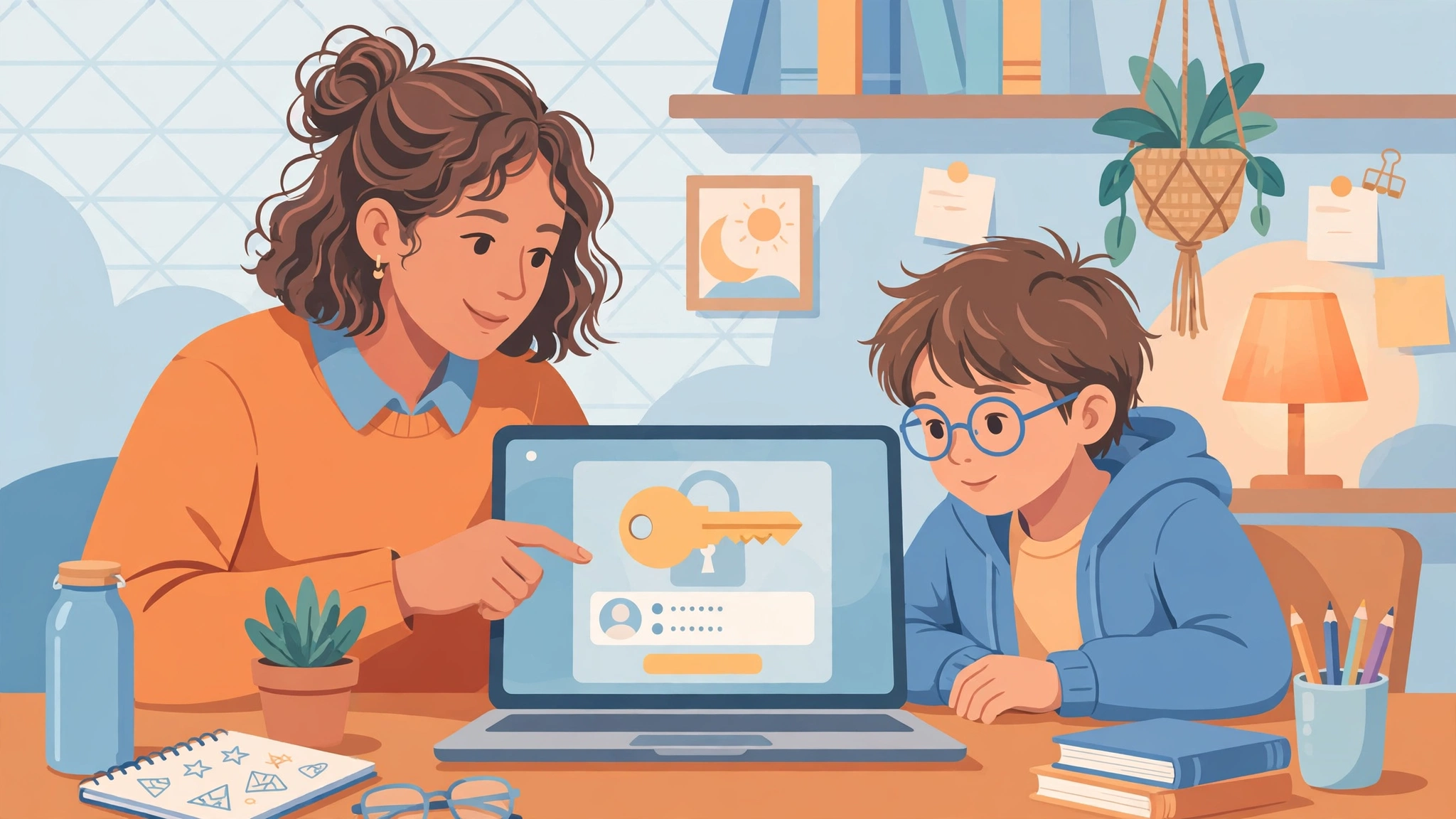
EPISD Schoology Parent Access Code: Complete Guide for Parents
What Is a Schoology Parent Access Code?
A Schoology Parent Access Code is a unique 12-digit code (in the format xxxx-xxxx-xxxx) that links your parent account to your child’s EPISD Schoology account. Each student has their own code, and you’ll need it to create a parent account on Schoology.
With a parent account, you can monitor your child’s assignments, grades, attendance, and school announcements — and message teachers directly. Note that parent accounts are largely read-only: you can view your child’s work but can’t submit assignments on their behalf.
How to Get Your Child’s Parent Access Code (EPISD)
EPISD does not publish access codes online — you must get it from the school. Here are the three ways:
1. Ask Your Child’s Teacher
The fastest way. Email your child’s teacher and ask for the Schoology Parent Access Code. Teachers can generate it in seconds.
2. Contact the School Office
Call or visit your child’s campus administrative office and request the code. Bring a photo ID — the school may ask to verify you’re the parent or guardian.
3. Find It in the EPISD Parent Portal
If you already have Parent Portal access:
- Log in to the EPISD Parent Portal
- Click on your child’s name, then open the Student Tools tab
- Select Student Profile — your child’s Schoology code appears in the profile details
Tip: If you have more than one child in EPISD, you only need one access code to get started — you can add your other children afterward (see below).
How to Create Your Schoology Parent Account: Step by Step
- Go to www.schoology.com (or app.schoology.com)
- Click Sign Up at the top of the page
- Select Parent as the account type
- Enter your 12-digit Parent Access Code and click Continue
- Fill in your name, email address, and a password
- Click Register to finish — you’re now linked to your child’s account
You can also do this in the Schoology mobile app (free on the App Store and Google Play) — the steps are the same.
How to Add Another Child to Your Account
Already registered with one child’s code? Adding siblings is easy:
- Log in to your Schoology parent account
- Click the down arrow next to your name (top right) and select Add Child
- Enter the additional child’s 12-digit Parent Access Code
- Click Use Code — the child is now linked to your account
What Can Parents See in Schoology?
- Grades — current grades for every course, updated by teachers
- Assignments — upcoming due dates and past submissions
- Attendance — daily attendance records
- Announcements — school and district updates
- Messages — direct messaging with your child’s teachers
Troubleshooting: Parent Access Code Not Working?
“Invalid code” error
Double-check you’ve entered all 12 digits with no spaces. The format is xxxx-xxxx-xxxx. If it still fails, the code may have been regenerated — ask the teacher for a fresh one.
Code has fewer than 12 digits
A valid EPISD Parent Access Code is always 12 digits. If yours isn’t, contact your child’s teacher or school office for the correct code.
Account locked after too many attempts
Using a student’s login credentials on a parent login page (or vice versa) can temporarily lock the account. Wait 30 minutes and try again with the correct account type — or reset via Forgot Password.
Can’t see your child’s courses
This usually happens at the start of a semester before teachers finish enrollment. Wait 24 hours; if courses still don’t appear, contact the teacher to confirm your child is enrolled in their Schoology course.
Frequently Asked Questions
Is the Schoology parent account free?
Yes — 100% free. EPISD provides Schoology to all families at no cost. If anyone asks you to pay for Schoology, contact the EPISD Help Desk immediately.
Can I use one parent account for multiple children?
Yes. Register with one child’s access code, then use Add Child to link your other children.
What’s the difference between a student and parent account?
Student accounts can submit work and join discussions; parent accounts are read-only and show an overview of the child’s progress. Never share login credentials between the two — it can lock the account.
Who do I contact for help?
Start with your child’s teacher or school office. For district-level tech issues, contact EPISD Technology Services.

6 Comments
Comments are closed.