
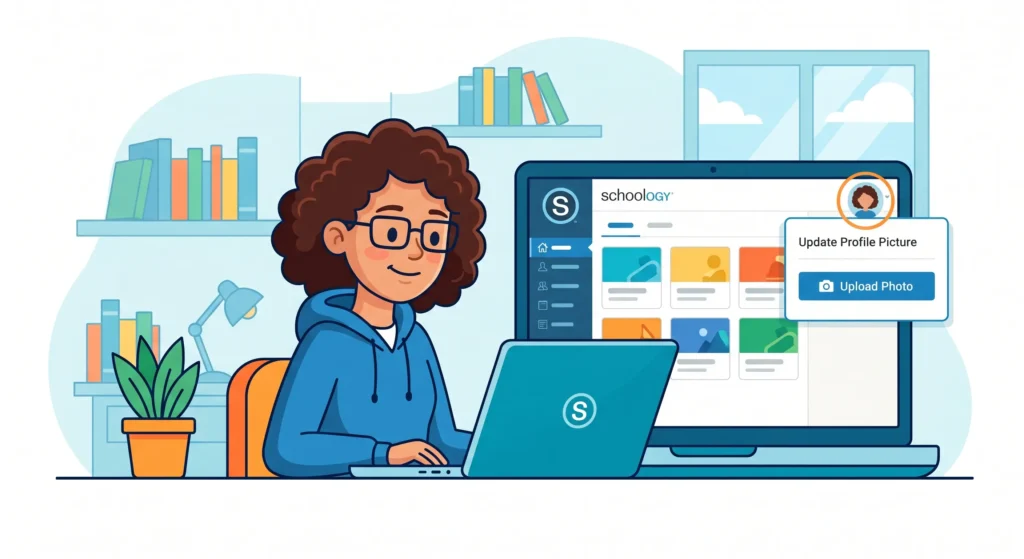
How to Change Profile Picture on Schoology (Step-by-Step Guide)
Want to update your Schoology profile picture? Whether you’re a student, teacher, or parent, changing your profile photo helps personalize your account and makes it easier for classmates and instructors to recognize you. This guide explains exactly how to change your profile picture on Schoology using a computer or mobile device.
Table of Contents
- What is Schoology?
- Why Change Your Schoology Profile Picture?
- Requirements Before Uploading a Photo
- How to Change Profile Picture on Schoology Desktop
- How to Change Profile Picture on Schoology Mobile App
- Profile Picture Best Practices
- Troubleshooting Common Issues
- Frequently Asked Questions
What is Schoology?
Schoology is a learning management system (LMS) used by schools and educational institutions worldwide. It allows students, teachers, and parents to access assignments, grades, discussions, learning materials, and classroom communication from one platform.
Why Change Your Schoology Profile Picture?
- Make your account easier to identify.
- Create a professional online classroom presence.
- Help teachers and classmates recognize you quickly.
- Personalize your Schoology account.
- Improve communication in online courses.
Requirements Before Uploading a Photo
| Requirement | Recommendation |
|---|---|
| Image Format | JPG, JPEG, PNG |
| Photo Quality | Clear and high-resolution |
| Face Visibility | Well-lit and visible |
| Professional Appearance | School-appropriate image |
How to Change Profile Picture on Schoology Desktop
Log In to Your Schoology Account
Open your browser and sign in to your Schoology account using your username and password.
Open Your Profile
Click your name or profile icon located in the top-right corner of the screen.
Go to Profile Settings
Select Profile from the dropdown menu to access your personal profile page.
Click Edit Picture
Hover over your current profile picture and click the option to upload or change your photo.
Select an Image
Choose a photo from your computer that meets Schoology’s image requirements.
Crop and Save
Adjust the image if necessary, then click Save to update your Schoology profile picture.
How to Change Profile Picture on Schoology Mobile App
Open the Schoology app on your smartphone.
Sign in to your account.
Tap your profile icon.
Select profile settings or account settings.
Tap your current profile picture.
Upload a new image from your gallery or camera and save the changes.
Profile Picture Best Practices
- Use a recent photo.
- Keep your face clearly visible.
- Avoid blurry or pixelated images.
- Use appropriate school-friendly photos.
- Choose a simple background.
Troubleshooting Common Issues
Profile Picture Not Updating?
- Refresh the page.
- Clear browser cache.
- Try another browser.
- Check image size and format.
- Log out and sign back in.
Can’t Change Your Picture?
Some schools restrict profile customization. If you don’t see the option to upload a photo, contact your school administrator or teacher.
Conclusion
Changing your profile picture on Schoology is a simple process that takes only a few minutes. A clear and professional profile photo helps improve communication, participation, and identification within your online learning environment. Follow the steps above to update your Schoology profile picture quickly and easily.
FAQs
Can students change their profile picture on Schoology?
Yes, students can usually update their profile picture unless the school administrator has disabled the feature.
What image format does Schoology support?
Schoology commonly supports JPG, JPEG, and PNG image formats.
Why can’t I upload a profile picture?
Your school may have restricted profile customization, or the image format may not be supported.
How long does it take for the new picture to appear?
Most profile picture updates appear immediately, although caching may sometimes cause a delay.
Can I remove my profile picture completely?
Depending on your school’s settings, you may be able to remove or replace your profile picture.